> ## Documentation Index
> Fetch the complete documentation index at: https://docs.arcbeam.ai/llms.txt
> Use this file to discover all available pages before exploring further.
# Retrieved Documents
> See which documents from your knowledge base influenced each LLM response
When you use RAG (retrieval-augmented generation), your LLM bases its answers on documents retrieved from your vector database. Arcbeam shows you exactly which documents were used and helps you understand if the right information was retrieved.
## Why Retrieved Documents Matter
Without seeing retrieved documents, you only know *what* the LLM said, not *why* it said it. With document visibility:
* **Debug wrong answers** - See if bad documents were retrieved
* **Improve your knowledge base** - Find gaps or outdated information
* **Build trust** - Show stakeholders exactly where answers came from
* **Optimize retrieval** - Identify when retrieval fails to find relevant docs
## Viewing Retrieved Documents in a Trace
When you open a trace that used RAG, you'll see a **Retrieved Documents** section:
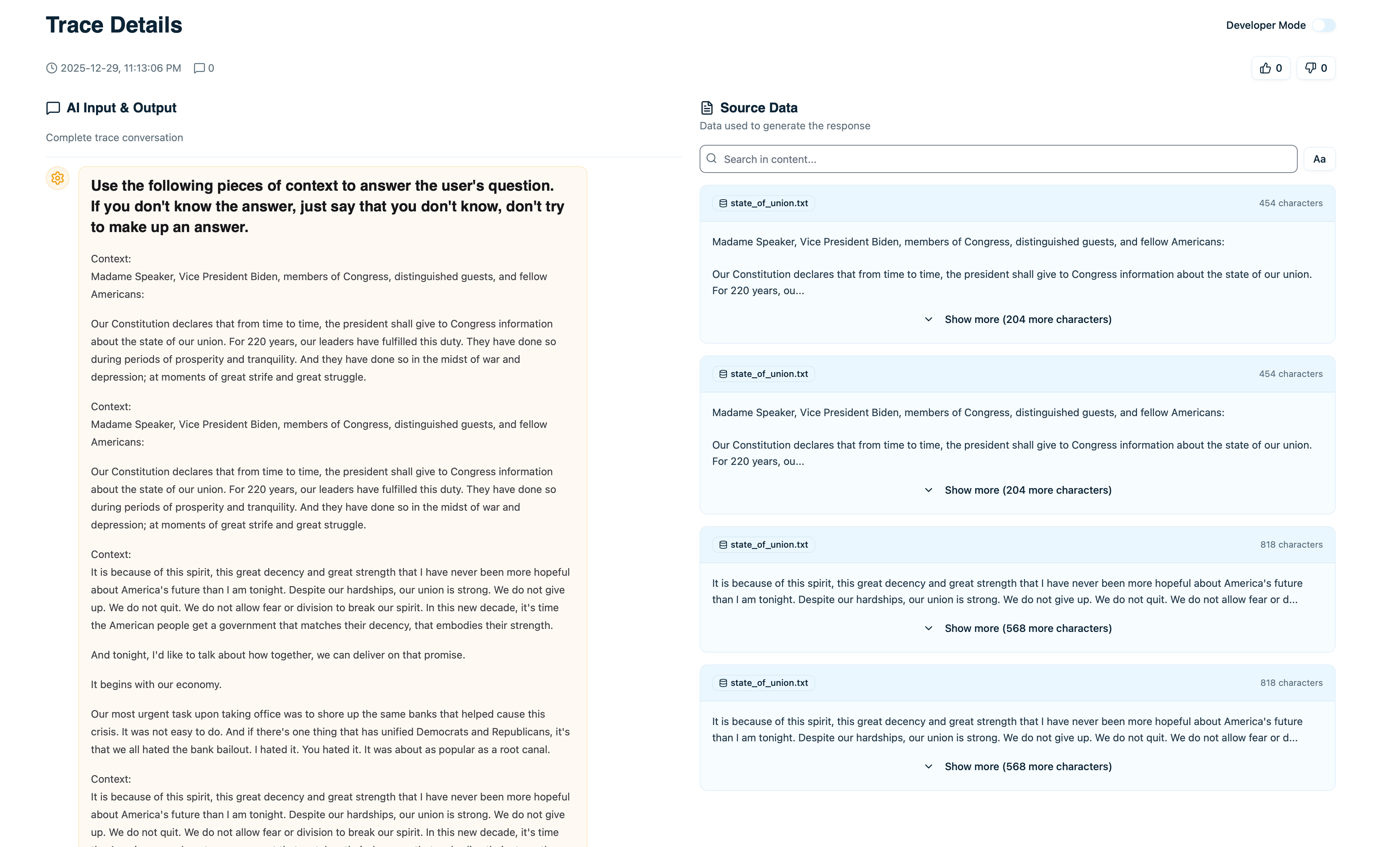 For each document retrieved, you see:
* **Document content** - The actual text passage
* **Source** - Where this came from (file name, URL, etc.)
* **Relevance score** - How relevant the retriever considered it (if available)
* **Retrieved at** - Which step in the execution retrieved this
## Document Details
Click on any retrieved document to see full details:
### Complete Content
The full text of the document chunk, not just a preview. This is exactly what was passed to the LLM as context.
### Data Lineage
Where this document came from:
* **File name** - Original file (e.g., `product-docs.pdf`)
* **URL** - Web source if applicable
* **Dataset** - Which dataset in Arcbeam contains this
* **Source type** - Document type or category
### Metadata
Additional fields synced from your vector database:
* **Last updated** - When this document was last modified
* **Author** - Who created it (if tracked)
* **Tags** - Categories or labels
* **Custom fields** - Any other metadata you've synced
### Retrieval Context
* **Retrieved at timestamp** - Exact time this was fetched
* **Retrieval step** - Which node in the execution retrieved it
* **Query used** - What query was sent to the vector database
* **Relevance score** - Similarity score from the retriever
## Connecting Data Sources
To see retrieved documents, you need to [connect your vector database →](/v0/setup/add-data-sources).
Once connected:
1. Arcbeam syncs metadata about your documents
2. When traces arrive with document IDs, Arcbeam links them
3. You see the full document content in each trace
If you haven't connected a data source, you'll see document IDs but not content:
Click **Connect Data Source** to link your vector database.
## Analyzing Retrieved Documents
### Were the Right Documents Retrieved?
When debugging a bad answer:
1. Open the trace
2. Review the retrieved documents
3. Ask: "Do these documents contain the right information?"
**If yes**: The retrieval worked, but the LLM misinterpreted the docs
* Problem: Prompt engineering or model choice
* Fix: Improve your prompt or try a different model
**If no**: Wrong documents were retrieved
* Problem: Retrieval strategy or knowledge base gaps
* Fix: Improve embeddings, adjust retrieval params, or add missing docs
### Document Relevance
Check relevance scores to see if the retriever was confident:
| Score Range | Meaning | Action |
| ----------- | ------------------- | ------------------------------ |
| > 0.8 | Highly relevant | Likely good retrieval |
| 0.6 - 0.8 | Moderately relevant | Might be okay, verify content |
| \< 0.6 | Weak match | Probably wrong docs, check why |
Low scores across all retrieved docs often mean:
* The query wasn't in your knowledge base
* Embeddings need improvement
* Not enough documents in that topic area
### Source Diversity
Look at where documents came from:
* **All from one source** - Might be too narrow
* **Diverse sources** - Good, comprehensive answer
* **Unexpected source** - Might indicate retrieval issue
Example: User asks about pricing, but all docs are from engineering guides instead of sales materials.
## Document Usage Stats
Click **View Usage** on any document to see:
* **Times retrieved** - How often this document is used
* **Unique traces** - Number of different queries that retrieved it
* **Average relevance** - Mean relevance score across retrievals
* **Recent traces** - Latest traces that used this document
This shows:
* **Popular documents** - Frequently retrieved, important content
* **Unused documents** - Never retrieved, might be irrelevant or poorly embedded
* **Trending documents** - Recently added or suddenly popular
[Learn more →](/v0/data-insights/see-what-data-is-used)
## Data Lineage
For each retrieved document, see exactly where it originated:
* **File path** - Original location (e.g., `/docs/api-reference.md`)
* **URL** - Web link if from a website
* **Repository** - GitHub repo if from code docs
* **Last modified** - When the source was last updated
This helps you:
* **Verify accuracy** - Check if the source doc is still current
* **Update outdated info** - Find the original file to update
* **Audit answers** - Trace back to authoritative sources
## Comparing Document Retrieval
To understand why two similar queries got different results:
1. Open the first trace
2. Note which documents were retrieved
3. Open the second trace
4. Compare retrieved documents
Look for:
* **Different documents** - Why did retrieval diverge?
* **Different order** - Did ranking change?
* **Missing documents** - Why wasn't an important doc retrieved?
Common causes of retrieval differences:
* Slight query wording changes affect embeddings
* Retrieval parameters (top K, threshold) filtering differently
* Documents updated between queries
## Debugging RAG Issues
### Issue: Wrong Answer Despite Having the Info
**Symptoms**: Your knowledge base has the right info, but the LLM gave a wrong answer.
**Debug steps**:
1. Check retrieved documents - Was the right document retrieved?
2. If yes: Read the prompt - Did you instruct the LLM to use the docs?
3. Check LLM output - Did it hallucinate or ignore the retrieved docs?
**Common fixes**:
* Improve prompt to emphasize using retrieved context
* Use a more capable model
* Reduce number of retrieved docs to avoid confusion
### Issue: Right Documents but Low Confidence Answer
**Symptoms**: Correct documents retrieved, but LLM says "I'm not sure" or hedges.
**Debug steps**:
1. Check document content - Is it clear and complete?
2. Check relevance scores - Are they low?
3. Review how many docs were retrieved - Too many or too few?
**Common fixes**:
* Improve document quality (clearer writing)
* Adjust retrieval threshold (require higher relevance)
* Modify prompt to reduce hedging
### Issue: No Relevant Documents Retrieved
**Symptoms**: Retrieved documents are completely unrelated to the query.
**Debug steps**:
1. Check if the topic exists in your knowledge base
2. Review embedding quality - Are similar queries finding the right docs?
3. Check query transformation - Was the query modified before retrieval?
**Common fixes**:
* Add missing content to knowledge base
* Re-embed documents with better model
* Adjust query transformation logic
## Using Retrieved Documents with Stakeholders
When sharing trace insights with non-technical stakeholders:
### Show Source Attribution
1. Open trace with wrong answer
2. Show which documents were retrieved
3. Highlight that the source docs are outdated or incorrect
This makes the problem concrete: "The AI used this outdated pricing doc from 2022."
### Demonstrate Coverage Gaps
1. Find traces where no relevant docs were retrieved
2. Group by topic
3. Show stakeholders which topics are missing from knowledge base
Creates actionable task: "We need to add documentation about X."
### Highlight Popular Content
1. Show which documents are retrieved most often
2. Demonstrate which topics users care about
3. Prioritize keeping those docs updated
[Learn more →](/v0/collaboration/review-traces-together)
## Best Practices
### Always Check Retrieved Docs First
When debugging bad outputs:
1. Don't assume the LLM is broken
2. First check: "Did it get the right documents?"
3. Often the problem is retrieval, not the LLM
### Monitor Retrieval Quality Over Time
Regularly review:
* Average relevance scores - Are they declining?
* Retrieval failures - Are certain queries never finding docs?
* Document coverage - Are large topic areas unrepresented?
### Keep Source Docs Updated
When you see outdated info in retrieved docs:
1. Update the original source document
2. Re-sync your data source in Arcbeam
3. Verify future traces use the new content
### Use Document Feedback for Improvement
When users give thumbs down:
1. Check which documents were retrieved
2. If docs are wrong: Improve retrieval or knowledge base
3. If docs are right: Improve prompt or model
## Next Steps
Link your vector database to see retrieved docs
Track which documents are used most
Complete guide to debugging retrieval issues
Organize traces for review sessions
For each document retrieved, you see:
* **Document content** - The actual text passage
* **Source** - Where this came from (file name, URL, etc.)
* **Relevance score** - How relevant the retriever considered it (if available)
* **Retrieved at** - Which step in the execution retrieved this
## Document Details
Click on any retrieved document to see full details:
### Complete Content
The full text of the document chunk, not just a preview. This is exactly what was passed to the LLM as context.
### Data Lineage
Where this document came from:
* **File name** - Original file (e.g., `product-docs.pdf`)
* **URL** - Web source if applicable
* **Dataset** - Which dataset in Arcbeam contains this
* **Source type** - Document type or category
### Metadata
Additional fields synced from your vector database:
* **Last updated** - When this document was last modified
* **Author** - Who created it (if tracked)
* **Tags** - Categories or labels
* **Custom fields** - Any other metadata you've synced
### Retrieval Context
* **Retrieved at timestamp** - Exact time this was fetched
* **Retrieval step** - Which node in the execution retrieved it
* **Query used** - What query was sent to the vector database
* **Relevance score** - Similarity score from the retriever
## Connecting Data Sources
To see retrieved documents, you need to [connect your vector database →](/v0/setup/add-data-sources).
Once connected:
1. Arcbeam syncs metadata about your documents
2. When traces arrive with document IDs, Arcbeam links them
3. You see the full document content in each trace
If you haven't connected a data source, you'll see document IDs but not content:
Click **Connect Data Source** to link your vector database.
## Analyzing Retrieved Documents
### Were the Right Documents Retrieved?
When debugging a bad answer:
1. Open the trace
2. Review the retrieved documents
3. Ask: "Do these documents contain the right information?"
**If yes**: The retrieval worked, but the LLM misinterpreted the docs
* Problem: Prompt engineering or model choice
* Fix: Improve your prompt or try a different model
**If no**: Wrong documents were retrieved
* Problem: Retrieval strategy or knowledge base gaps
* Fix: Improve embeddings, adjust retrieval params, or add missing docs
### Document Relevance
Check relevance scores to see if the retriever was confident:
| Score Range | Meaning | Action |
| ----------- | ------------------- | ------------------------------ |
| > 0.8 | Highly relevant | Likely good retrieval |
| 0.6 - 0.8 | Moderately relevant | Might be okay, verify content |
| \< 0.6 | Weak match | Probably wrong docs, check why |
Low scores across all retrieved docs often mean:
* The query wasn't in your knowledge base
* Embeddings need improvement
* Not enough documents in that topic area
### Source Diversity
Look at where documents came from:
* **All from one source** - Might be too narrow
* **Diverse sources** - Good, comprehensive answer
* **Unexpected source** - Might indicate retrieval issue
Example: User asks about pricing, but all docs are from engineering guides instead of sales materials.
## Document Usage Stats
Click **View Usage** on any document to see:
* **Times retrieved** - How often this document is used
* **Unique traces** - Number of different queries that retrieved it
* **Average relevance** - Mean relevance score across retrievals
* **Recent traces** - Latest traces that used this document
This shows:
* **Popular documents** - Frequently retrieved, important content
* **Unused documents** - Never retrieved, might be irrelevant or poorly embedded
* **Trending documents** - Recently added or suddenly popular
[Learn more →](/v0/data-insights/see-what-data-is-used)
## Data Lineage
For each retrieved document, see exactly where it originated:
* **File path** - Original location (e.g., `/docs/api-reference.md`)
* **URL** - Web link if from a website
* **Repository** - GitHub repo if from code docs
* **Last modified** - When the source was last updated
This helps you:
* **Verify accuracy** - Check if the source doc is still current
* **Update outdated info** - Find the original file to update
* **Audit answers** - Trace back to authoritative sources
## Comparing Document Retrieval
To understand why two similar queries got different results:
1. Open the first trace
2. Note which documents were retrieved
3. Open the second trace
4. Compare retrieved documents
Look for:
* **Different documents** - Why did retrieval diverge?
* **Different order** - Did ranking change?
* **Missing documents** - Why wasn't an important doc retrieved?
Common causes of retrieval differences:
* Slight query wording changes affect embeddings
* Retrieval parameters (top K, threshold) filtering differently
* Documents updated between queries
## Debugging RAG Issues
### Issue: Wrong Answer Despite Having the Info
**Symptoms**: Your knowledge base has the right info, but the LLM gave a wrong answer.
**Debug steps**:
1. Check retrieved documents - Was the right document retrieved?
2. If yes: Read the prompt - Did you instruct the LLM to use the docs?
3. Check LLM output - Did it hallucinate or ignore the retrieved docs?
**Common fixes**:
* Improve prompt to emphasize using retrieved context
* Use a more capable model
* Reduce number of retrieved docs to avoid confusion
### Issue: Right Documents but Low Confidence Answer
**Symptoms**: Correct documents retrieved, but LLM says "I'm not sure" or hedges.
**Debug steps**:
1. Check document content - Is it clear and complete?
2. Check relevance scores - Are they low?
3. Review how many docs were retrieved - Too many or too few?
**Common fixes**:
* Improve document quality (clearer writing)
* Adjust retrieval threshold (require higher relevance)
* Modify prompt to reduce hedging
### Issue: No Relevant Documents Retrieved
**Symptoms**: Retrieved documents are completely unrelated to the query.
**Debug steps**:
1. Check if the topic exists in your knowledge base
2. Review embedding quality - Are similar queries finding the right docs?
3. Check query transformation - Was the query modified before retrieval?
**Common fixes**:
* Add missing content to knowledge base
* Re-embed documents with better model
* Adjust query transformation logic
## Using Retrieved Documents with Stakeholders
When sharing trace insights with non-technical stakeholders:
### Show Source Attribution
1. Open trace with wrong answer
2. Show which documents were retrieved
3. Highlight that the source docs are outdated or incorrect
This makes the problem concrete: "The AI used this outdated pricing doc from 2022."
### Demonstrate Coverage Gaps
1. Find traces where no relevant docs were retrieved
2. Group by topic
3. Show stakeholders which topics are missing from knowledge base
Creates actionable task: "We need to add documentation about X."
### Highlight Popular Content
1. Show which documents are retrieved most often
2. Demonstrate which topics users care about
3. Prioritize keeping those docs updated
[Learn more →](/v0/collaboration/review-traces-together)
## Best Practices
### Always Check Retrieved Docs First
When debugging bad outputs:
1. Don't assume the LLM is broken
2. First check: "Did it get the right documents?"
3. Often the problem is retrieval, not the LLM
### Monitor Retrieval Quality Over Time
Regularly review:
* Average relevance scores - Are they declining?
* Retrieval failures - Are certain queries never finding docs?
* Document coverage - Are large topic areas unrepresented?
### Keep Source Docs Updated
When you see outdated info in retrieved docs:
1. Update the original source document
2. Re-sync your data source in Arcbeam
3. Verify future traces use the new content
### Use Document Feedback for Improvement
When users give thumbs down:
1. Check which documents were retrieved
2. If docs are wrong: Improve retrieval or knowledge base
3. If docs are right: Improve prompt or model
## Next Steps
Link your vector database to see retrieved docs
Track which documents are used most
Complete guide to debugging retrieval issues
Organize traces for review sessions