> ## Documentation Index
> Fetch the complete documentation index at: https://docs.arcbeam.ai/llms.txt
> Use this file to discover all available pages before exploring further.
# LangGraph Integration
> Send traces from LangGraph applications to Arcbeam
Arcbeam integrates with LangGraph to provide full observability for your agent workflows. Capture every graph execution, node transition, and state change automatically.
## What Gets Captured
Complete workflow from start to finish with full execution tree
Each node in your graph with inputs, outputs, and state transformations
How state evolves through the graph at each step
Model invocations within nodes with prompts, responses, and costs
External API calls and function executions within nodes
Which paths the agent took and why, including decision logic
Duration for each node and transition to identify bottlenecks
Where execution failed and why, with full stack traces
## Installation
Ensure you have:
* Python 3.9 or higher
* LangGraph installed (`pip install langgraph`)
* Arcbeam account and API key
```bash theme={null}
pip install arcbeam-connector
```
Installation complete! You're ready to instrument your LangGraph workflows.
## Quick Start
### 1. Initialize Arcbeam
Add these lines at the start of your application:
```python theme={null}
from arcbeam_connector.langchain.connector import ArcbeamLangConnector
connector = ArcbeamLangConnector(
base_url="http://platform.arcbeam.ai", # Or your self-hosted URL
api_key="your-api-key-here", # Your Arcbeam API key
project_id="your-project-id-here", # Your project ID
)
connector.init()
```
### 2. Run Your LangGraph Code
Your existing LangGraph code will automatically send traces:
```python theme={null}
from langgraph.graph import StateGraph, END
from langchain.llms import OpenAI
# Define your graph (no changes needed)
workflow = StateGraph(dict)
def call_model(state):
llm = OpenAI()
response = llm.invoke(state["messages"])
return {"messages": response}
workflow.add_node("agent", call_model)
workflow.add_edge("agent", END)
workflow.set_entry_point("agent")
app = workflow.compile()
# This execution is automatically traced
result = app.invoke({"messages": "What is the weather?"})
```
## Configuration
### Environment Variables
Use environment variables for credentials:
```bash theme={null}
export ARCBEAM_API_KEY="your_api_key"
export ARCBEAM_PROJECT_ID="your_project_id"
export ARCBEAM_BASE_URL="http://platform.arcbeam.ai"
```
Then read from environment variables in your code:
```python theme={null}
import os
from arcbeam_connector.langchain.connector import ArcbeamLangConnector
connector = ArcbeamLangConnector(
base_url=os.getenv("ARCBEAM_BASE_URL"),
api_key=os.getenv("ARCBEAM_API_KEY"),
project_id=os.getenv("ARCBEAM_PROJECT_ID"),
)
connector.init()
```
### Environment Tag
Add environment tag to organize traces:
```python theme={null}
from arcbeam_connector.langchain.connector import ArcbeamLangConnector
connector = ArcbeamLangConnector(
base_url="http://platform.arcbeam.ai",
api_key="your_api_key",
project_id="your_project_id",
environment="production", # Tag traces by environment
)
connector.init()
```
## Advanced Usage
The Arcbeam connector automatically captures all LangGraph operations including graph executions, node transitions, state changes, LLM calls, and errors. All traces are tagged with your project ID and environment for easy filtering.
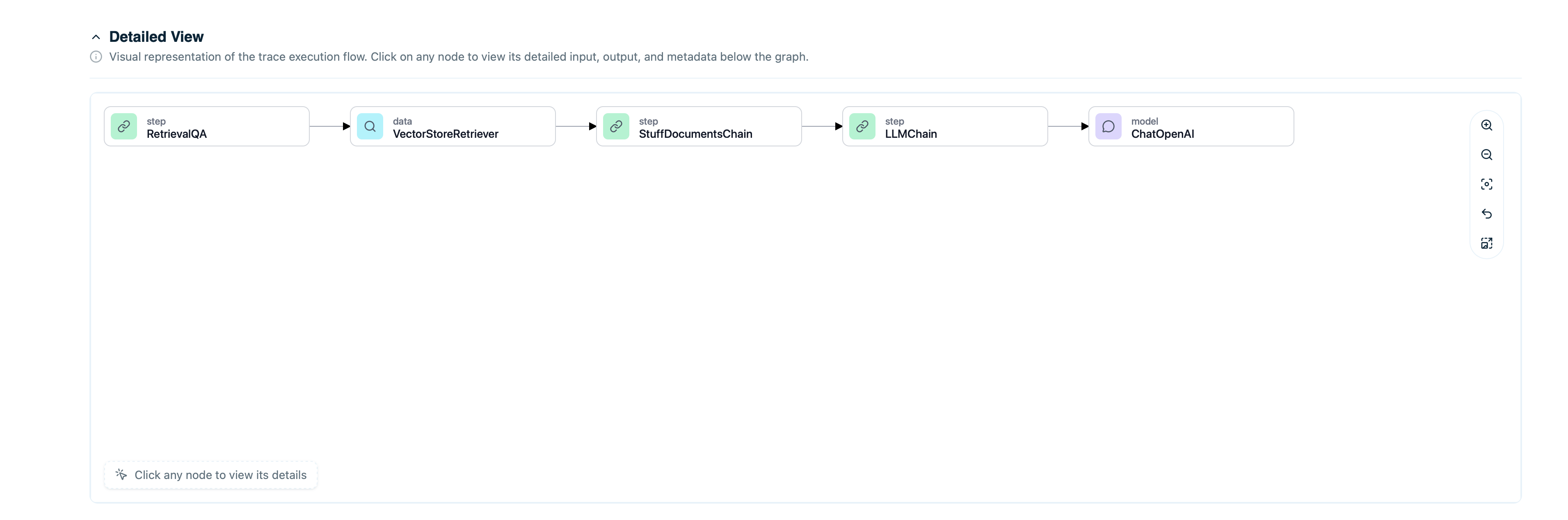
## Visualizing Agent Workflows
### View Graph Execution
In the Arcbeam dashboard:
1. Go to **Traces** page
2. Find your graph execution
3. View the span tree showing:
* Graph execution span (top level)
* Node execution spans (children)
* LLM calls within nodes
* Tool calls within nodes
* Timing for each step
 ### Understand Conditional Paths
See which edges were taken:
* View decision points
* Check conditional logic outcomes
* Understand why certain nodes were skipped
* Identify unexpected routing
## Example: Customer Service Agent
Full example with LangGraph and Arcbeam:
```python theme={null}
import os
from arcbeam_connector.langchain.connector import ArcbeamLangConnector
from langgraph.graph import StateGraph, END
from langchain.llms import OpenAI
from langchain.vectorstores import PGVector
from typing import TypedDict
# Initialize Arcbeam
connector = ArcbeamLangConnector(
base_url=os.getenv("ARCBEAM_BASE_URL", "http://platform.arcbeam.ai"),
api_key=os.getenv("ARCBEAM_API_KEY"),
project_id=os.getenv("ARCBEAM_PROJECT_ID"),
environment="production",
)
connector.init()
# Define state
class AgentState(TypedDict):
messages: list
intent: str
context: list
response: str
# Set up vector store
vectorstore = PGVector(
connection_string=os.getenv("DATABASE_URL"),
embedding_function=embeddings,
collection_name="kb_docs"
)
# Define nodes
def classify_intent(state: AgentState) -> AgentState:
llm = OpenAI(model="gpt-4")
intent = llm.invoke(f"Classify intent: {state['messages'][-1]}")
return {"intent": intent}
def retrieve_context(state: AgentState) -> AgentState:
docs = vectorstore.similarity_search(state["messages"][-1], k=3)
return {"context": docs}
def generate_response(state: AgentState) -> AgentState:
llm = OpenAI(model="gpt-4")
context_str = "\n".join([doc.page_content for doc in state["context"]])
prompt = f"Context: {context_str}\n\nQuestion: {state['messages'][-1]}"
response = llm.invoke(prompt)
return {"response": response}
# Build graph
workflow = StateGraph(AgentState)
workflow.add_node("classify", classify_intent)
workflow.add_node("retrieve", retrieve_context)
workflow.add_node("generate", generate_response)
workflow.add_edge("classify", "retrieve")
workflow.add_edge("retrieve", "generate")
workflow.add_edge("generate", END)
workflow.set_entry_point("classify")
app = workflow.compile()
# Handle user request
def handle_customer_query(user_id: str, query: str) -> str:
# Run the graph (automatically traced)
result = app.invoke({
"messages": [query],
"intent": "",
"context": [],
"response": ""
})
return result["response"]
# Example usage
response = handle_customer_query("user_456", "How do I return an item?")
print(response)
```
## Debugging LangGraph Applications
### Find Failing Nodes
Filter traces with errors:
1. Set status filter: `error`
2. View which node failed
3. Check error message and stack trace
4. Review node inputs that caused failure
### Optimize Slow Paths
Identify performance bottlenecks:
1. Filter by duration: `> 10 seconds`
2. View span tree to see slow nodes
3. Check if specific LLM calls or retrievals are slow
4. Optimize prompts or reduce retrieval count
### Compare Different Paths
Understand routing decisions:
1. Create collection of similar queries
2. Compare which paths they took
3. See if conditional logic works as expected
4. Identify edge cases
### Track State Evolution
See how state changes through the graph:
1. View trace detail
2. Check state at each node
3. Verify state updates are correct
4. Debug unexpected state changes
## Connecting Data Sources
To enable data lineage for retrieval nodes:
1. Connect your vector store as a dataset in Arcbeam
2. Map document ID columns
3. Sync metadata
Now traces will show retrieved documents with full source attribution.
[Learn more about datasets →](/v0/core-concepts/datasets-and-data-sources)
## Best Practices
### Initialize Before Graph Definition
Call `connector.init()` before defining your graph:
```python theme={null}
# Good: Initialize first
from arcbeam_connector.langchain.connector import ArcbeamLangConnector
connector = ArcbeamLangConnector(
base_url="http://platform.arcbeam.ai",
api_key="your-api-key-here",
project_id="your-project-id-here",
)
connector.init()
from langgraph.graph import StateGraph
# ... define your graph
```
### Use Descriptive Node Names
Name nodes clearly:
```
❌ Bad: "node1", "node2", "process"
✅ Good: "classify_intent", "retrieve_context", "generate_response"
```
## Troubleshooting
### Traces Not Appearing
**Check Initialization**: Ensure `connector.init()` is called before graph compilation.
**Check Credentials**: Verify API key and project ID:
```python theme={null}
import os
print(os.getenv("ARCBEAM_API_KEY"))
print(os.getenv("ARCBEAM_PROJECT_ID"))
```
**Check Network**: Ensure application can reach the Arcbeam platform URL.
### Missing Node Details
The connector automatically captures node executions and transitions. Ensure your graph is properly defined with descriptive node names.
### Performance Impact
Traces are sent asynchronously and shouldn't impact performance. If you experience issues, check your network connection to the Arcbeam platform.
## Next Steps
Instrument LangChain applications
Connect vector stores for data lineage
Debug LangGraph workflows
Optimize retrieval nodes
### Understand Conditional Paths
See which edges were taken:
* View decision points
* Check conditional logic outcomes
* Understand why certain nodes were skipped
* Identify unexpected routing
## Example: Customer Service Agent
Full example with LangGraph and Arcbeam:
```python theme={null}
import os
from arcbeam_connector.langchain.connector import ArcbeamLangConnector
from langgraph.graph import StateGraph, END
from langchain.llms import OpenAI
from langchain.vectorstores import PGVector
from typing import TypedDict
# Initialize Arcbeam
connector = ArcbeamLangConnector(
base_url=os.getenv("ARCBEAM_BASE_URL", "http://platform.arcbeam.ai"),
api_key=os.getenv("ARCBEAM_API_KEY"),
project_id=os.getenv("ARCBEAM_PROJECT_ID"),
environment="production",
)
connector.init()
# Define state
class AgentState(TypedDict):
messages: list
intent: str
context: list
response: str
# Set up vector store
vectorstore = PGVector(
connection_string=os.getenv("DATABASE_URL"),
embedding_function=embeddings,
collection_name="kb_docs"
)
# Define nodes
def classify_intent(state: AgentState) -> AgentState:
llm = OpenAI(model="gpt-4")
intent = llm.invoke(f"Classify intent: {state['messages'][-1]}")
return {"intent": intent}
def retrieve_context(state: AgentState) -> AgentState:
docs = vectorstore.similarity_search(state["messages"][-1], k=3)
return {"context": docs}
def generate_response(state: AgentState) -> AgentState:
llm = OpenAI(model="gpt-4")
context_str = "\n".join([doc.page_content for doc in state["context"]])
prompt = f"Context: {context_str}\n\nQuestion: {state['messages'][-1]}"
response = llm.invoke(prompt)
return {"response": response}
# Build graph
workflow = StateGraph(AgentState)
workflow.add_node("classify", classify_intent)
workflow.add_node("retrieve", retrieve_context)
workflow.add_node("generate", generate_response)
workflow.add_edge("classify", "retrieve")
workflow.add_edge("retrieve", "generate")
workflow.add_edge("generate", END)
workflow.set_entry_point("classify")
app = workflow.compile()
# Handle user request
def handle_customer_query(user_id: str, query: str) -> str:
# Run the graph (automatically traced)
result = app.invoke({
"messages": [query],
"intent": "",
"context": [],
"response": ""
})
return result["response"]
# Example usage
response = handle_customer_query("user_456", "How do I return an item?")
print(response)
```
## Debugging LangGraph Applications
### Find Failing Nodes
Filter traces with errors:
1. Set status filter: `error`
2. View which node failed
3. Check error message and stack trace
4. Review node inputs that caused failure
### Optimize Slow Paths
Identify performance bottlenecks:
1. Filter by duration: `> 10 seconds`
2. View span tree to see slow nodes
3. Check if specific LLM calls or retrievals are slow
4. Optimize prompts or reduce retrieval count
### Compare Different Paths
Understand routing decisions:
1. Create collection of similar queries
2. Compare which paths they took
3. See if conditional logic works as expected
4. Identify edge cases
### Track State Evolution
See how state changes through the graph:
1. View trace detail
2. Check state at each node
3. Verify state updates are correct
4. Debug unexpected state changes
## Connecting Data Sources
To enable data lineage for retrieval nodes:
1. Connect your vector store as a dataset in Arcbeam
2. Map document ID columns
3. Sync metadata
Now traces will show retrieved documents with full source attribution.
[Learn more about datasets →](/v0/core-concepts/datasets-and-data-sources)
## Best Practices
### Initialize Before Graph Definition
Call `connector.init()` before defining your graph:
```python theme={null}
# Good: Initialize first
from arcbeam_connector.langchain.connector import ArcbeamLangConnector
connector = ArcbeamLangConnector(
base_url="http://platform.arcbeam.ai",
api_key="your-api-key-here",
project_id="your-project-id-here",
)
connector.init()
from langgraph.graph import StateGraph
# ... define your graph
```
### Use Descriptive Node Names
Name nodes clearly:
```
❌ Bad: "node1", "node2", "process"
✅ Good: "classify_intent", "retrieve_context", "generate_response"
```
## Troubleshooting
### Traces Not Appearing
**Check Initialization**: Ensure `connector.init()` is called before graph compilation.
**Check Credentials**: Verify API key and project ID:
```python theme={null}
import os
print(os.getenv("ARCBEAM_API_KEY"))
print(os.getenv("ARCBEAM_PROJECT_ID"))
```
**Check Network**: Ensure application can reach the Arcbeam platform URL.
### Missing Node Details
The connector automatically captures node executions and transitions. Ensure your graph is properly defined with descriptive node names.
### Performance Impact
Traces are sent asynchronously and shouldn't impact performance. If you experience issues, check your network connection to the Arcbeam platform.
## Next Steps
Instrument LangChain applications
Connect vector stores for data lineage
Debug LangGraph workflows
Optimize retrieval nodes