> ## Documentation Index
> Fetch the complete documentation index at: https://docs.arcbeam.ai/llms.txt
> Use this file to discover all available pages before exploring further.
# Quickstart
> Get Arcbeam running and send your first trace in 5 minutes
This guide will get you up and running with Arcbeam in minutes. You'll install the connector, send your first trace, and see it in the dashboard.
## Prerequisites
Before you begin, make sure you have:
* An Arcbeam account
* Python 3.9+
* OpenAI API key (for this example)
## Step 1: Get Your API Key
Navigate to [platform.arcbeam.ai](https://platform.arcbeam.ai) and sign in with your account.
Go to Settings → API Keys and click "Create New Key". Give it a descriptive name like "Development Key".
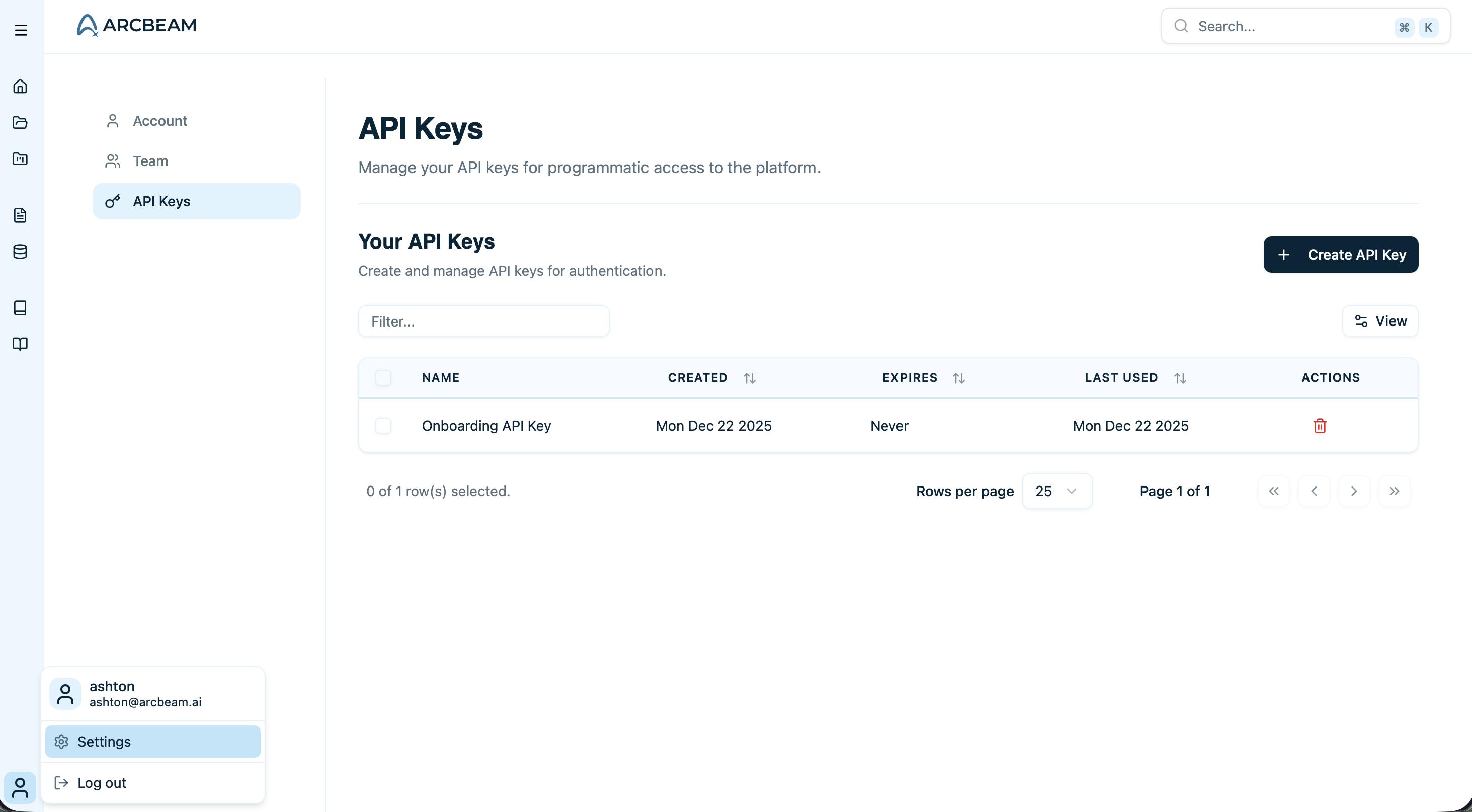 Copy the API key and store it securely. You'll need it in the next step.
API keys are only shown once. If you lose it, you'll need to create a new one.
Store your API key in a secure password manager or environment variable manager like 1Password or Doppler.
## Step 2: Install the Arcbeam Connector
```bash theme={null}
pip install arcbeam-connector langchain-openai
```
## Step 3: Create Your First Traced Application
Create a simple LangChain agent that uses Arcbeam tracing:
```python Python theme={null}
from langchain.agents import create_agent
from langchain_openai import ChatOpenAI
from arcbeam_connector.langchain.connector import ArcbeamLangConnector
# Initialize the Arcbeam connector
connector = ArcbeamLangConnector(
base_url="http://platform.arcbeam.ai", # Or your self-hosted URL
api_key="your-api-key-here", # Your Arcbeam API key
)
connector.init()
# Create your model
model = ChatOpenAI(model="gpt-4o-mini")
# Define a simple tool
def get_weather(city: str) -> str:
"""Get weather for a given city."""
return f"It's always sunny in {city}!"
# Create the agent with your tools
agent = create_agent(
model=model,
tools=[get_weather],
system_prompt="You are a helpful assistant",
)
# Run the agent - this will be automatically traced!
result = agent.invoke(
{"messages": [{"role": "user", "content": "what is the weather in sf"}]},
config={"callbacks": []}
)
print(result["messages"][-1].content)
```
Make sure to set your `OPENAI_API_KEY` environment variable before running this code.
The connector automatically captures all LangChain operations without requiring you to modify your existing code beyond the initialization.
## Step 4: Run Your Application
Save the code to a file and run it:
```bash Python theme={null}
export OPENAI_API_KEY=your-openai-key
python your_app.py
```
You should see the agent's response in your terminal, something like: "It's always sunny in San Francisco!"
## Step 5: View Your Trace in Arcbeam
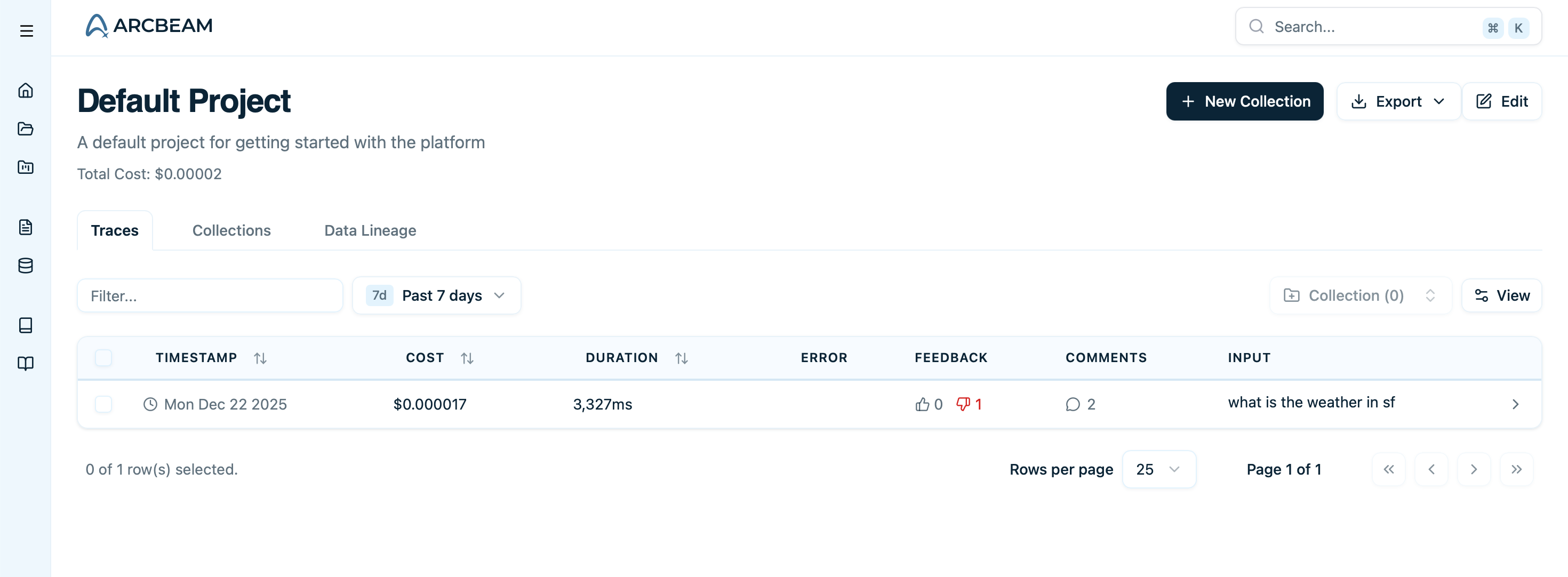
Go back to Arcbeam and click on "Projects" in the sidebar.
Click on the Default Project.
You'll see your trace in the list. Click on it to view the details.
Copy the API key and store it securely. You'll need it in the next step.
API keys are only shown once. If you lose it, you'll need to create a new one.
Store your API key in a secure password manager or environment variable manager like 1Password or Doppler.
## Step 2: Install the Arcbeam Connector
```bash theme={null}
pip install arcbeam-connector langchain-openai
```
## Step 3: Create Your First Traced Application
Create a simple LangChain agent that uses Arcbeam tracing:
```python Python theme={null}
from langchain.agents import create_agent
from langchain_openai import ChatOpenAI
from arcbeam_connector.langchain.connector import ArcbeamLangConnector
# Initialize the Arcbeam connector
connector = ArcbeamLangConnector(
base_url="http://platform.arcbeam.ai", # Or your self-hosted URL
api_key="your-api-key-here", # Your Arcbeam API key
)
connector.init()
# Create your model
model = ChatOpenAI(model="gpt-4o-mini")
# Define a simple tool
def get_weather(city: str) -> str:
"""Get weather for a given city."""
return f"It's always sunny in {city}!"
# Create the agent with your tools
agent = create_agent(
model=model,
tools=[get_weather],
system_prompt="You are a helpful assistant",
)
# Run the agent - this will be automatically traced!
result = agent.invoke(
{"messages": [{"role": "user", "content": "what is the weather in sf"}]},
config={"callbacks": []}
)
print(result["messages"][-1].content)
```
Make sure to set your `OPENAI_API_KEY` environment variable before running this code.
The connector automatically captures all LangChain operations without requiring you to modify your existing code beyond the initialization.
## Step 4: Run Your Application
Save the code to a file and run it:
```bash Python theme={null}
export OPENAI_API_KEY=your-openai-key
python your_app.py
```
You should see the agent's response in your terminal, something like: "It's always sunny in San Francisco!"
## Step 5: View Your Trace in Arcbeam
Go back to Arcbeam and click on "Projects" in the sidebar.
Click on the Default Project.
You'll see your trace in the list. Click on it to view the details.
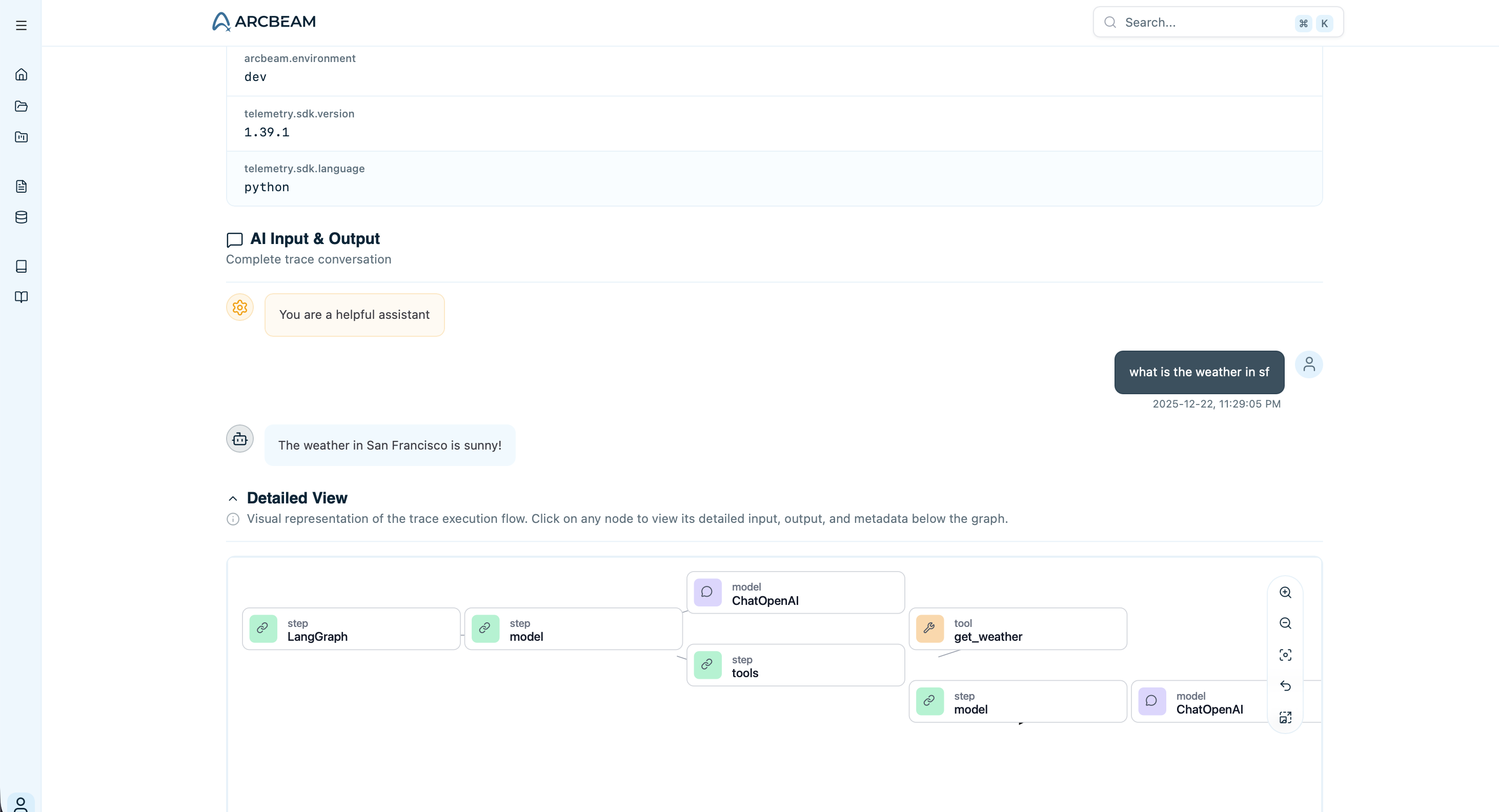
 In the trace detail view, you can see:
* The agent's steps (model calls, tool executions)
* Input and output for each step
* Token usage and cost
* Execution time
* The complete workflow visualization
In the trace detail view, you can see:
* The agent's steps (model calls, tool executions)
* Input and output for each step
* Token usage and cost
* Execution time
* The complete workflow visualization
 ## What's Next?
Congratulations! You've sent your first trace to Arcbeam.
Here's what to do next:
Learn about advanced connector features like environments and custom metadata
Link your vector databases to see which documents are retrieved in traces
Learn how to filter, search, and analyze your traces
Organize traces for team review and collaboration
## Troubleshooting
* Check that you're using the correct API key
* Verify your application ran without errors
* Make sure you called `connector.init()` before any LangChain operations
* Check your network connection - traces are sent over HTTPS
* Verify your API key is correct and hasn't been deleted
* Make sure you copied the full key including the `sk-` prefix
* Check that you're connecting to the correct base URL
* Ensure `connector.init()` is called before any LangChain operations
* Verify you're using a supported LangChain version (0.1.0+)
* Check the console for any error messages from the connector
For more help, see the [troubleshooting guide](/v0/deployment/troubleshooting) or contact [support@arcbeam.ai](mailto:support@arcbeam.ai).
## What's Next?
Congratulations! You've sent your first trace to Arcbeam.
Here's what to do next:
Learn about advanced connector features like environments and custom metadata
Link your vector databases to see which documents are retrieved in traces
Learn how to filter, search, and analyze your traces
Organize traces for team review and collaboration
## Troubleshooting
* Check that you're using the correct API key
* Verify your application ran without errors
* Make sure you called `connector.init()` before any LangChain operations
* Check your network connection - traces are sent over HTTPS
* Verify your API key is correct and hasn't been deleted
* Make sure you copied the full key including the `sk-` prefix
* Check that you're connecting to the correct base URL
* Ensure `connector.init()` is called before any LangChain operations
* Verify you're using a supported LangChain version (0.1.0+)
* Check the console for any error messages from the connector
For more help, see the [troubleshooting guide](/v0/deployment/troubleshooting) or contact [support@arcbeam.ai](mailto:support@arcbeam.ai).