> ## Documentation Index
> Fetch the complete documentation index at: https://docs.arcbeam.ai/llms.txt
> Use this file to discover all available pages before exploring further.
# Connect Your Data Sources
> Connect your vector databases to Arcbeam to see which documents influenced each trace
Connecting your vector databases to Arcbeam creates a complete picture of your AI system. You'll see not just what your model said, but exactly which documents from your knowledge base influenced each response.
## Why Connect Data Sources?
When you only see traces without data sources, you know your AI system produced an answer but you don't know where it came from. Was it hallucinating? Did it retrieve the right documents? Which parts of your knowledge base are actually being used?
**With data sources connected**, every trace shows:
Which specific documents were retrieved and their exact content
How often each document is used across all queries
Which documents need updating or improvement
Turn observability into concrete improvements
## How It Works
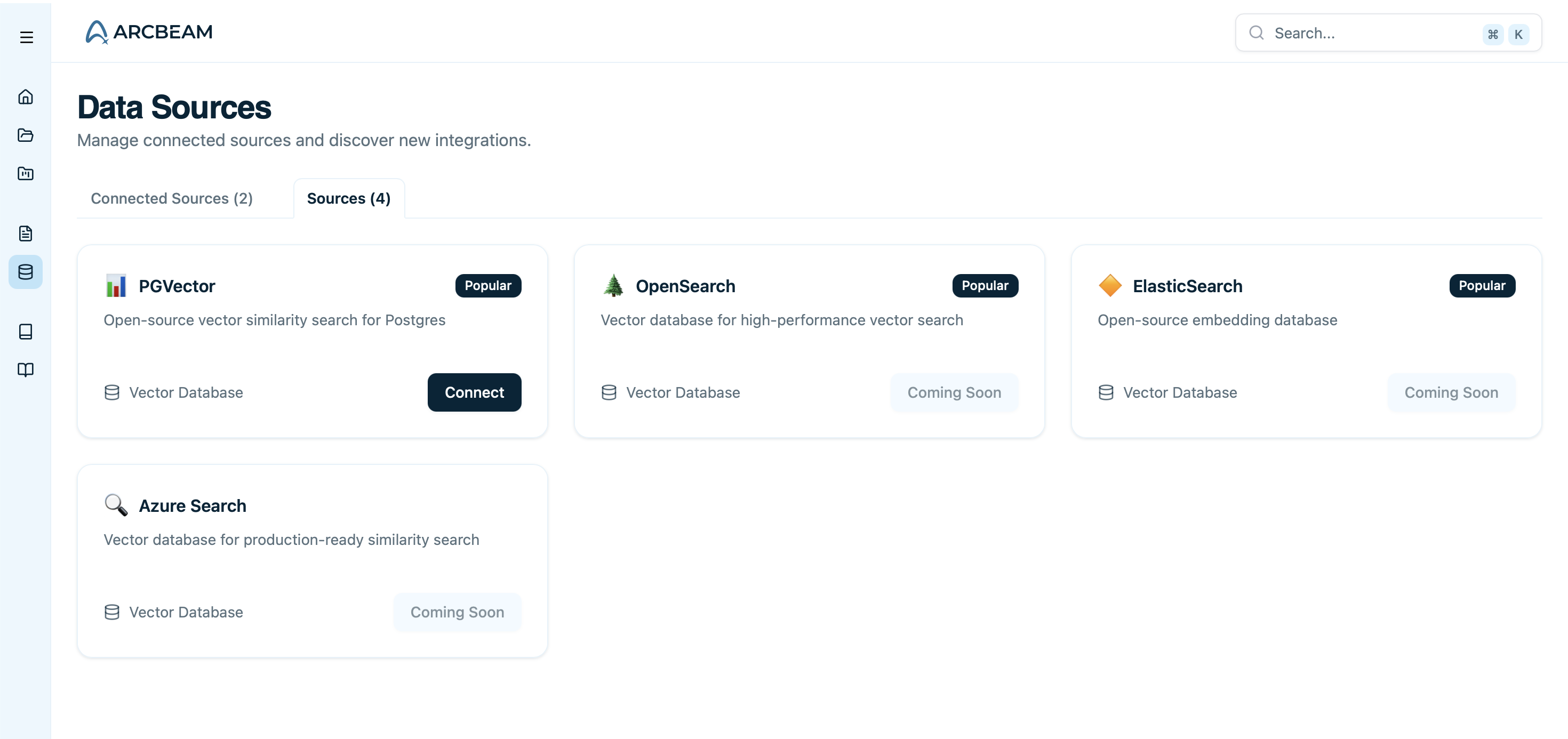
Navigate to `Data Platform` → `Data Sources` and choose your data source.
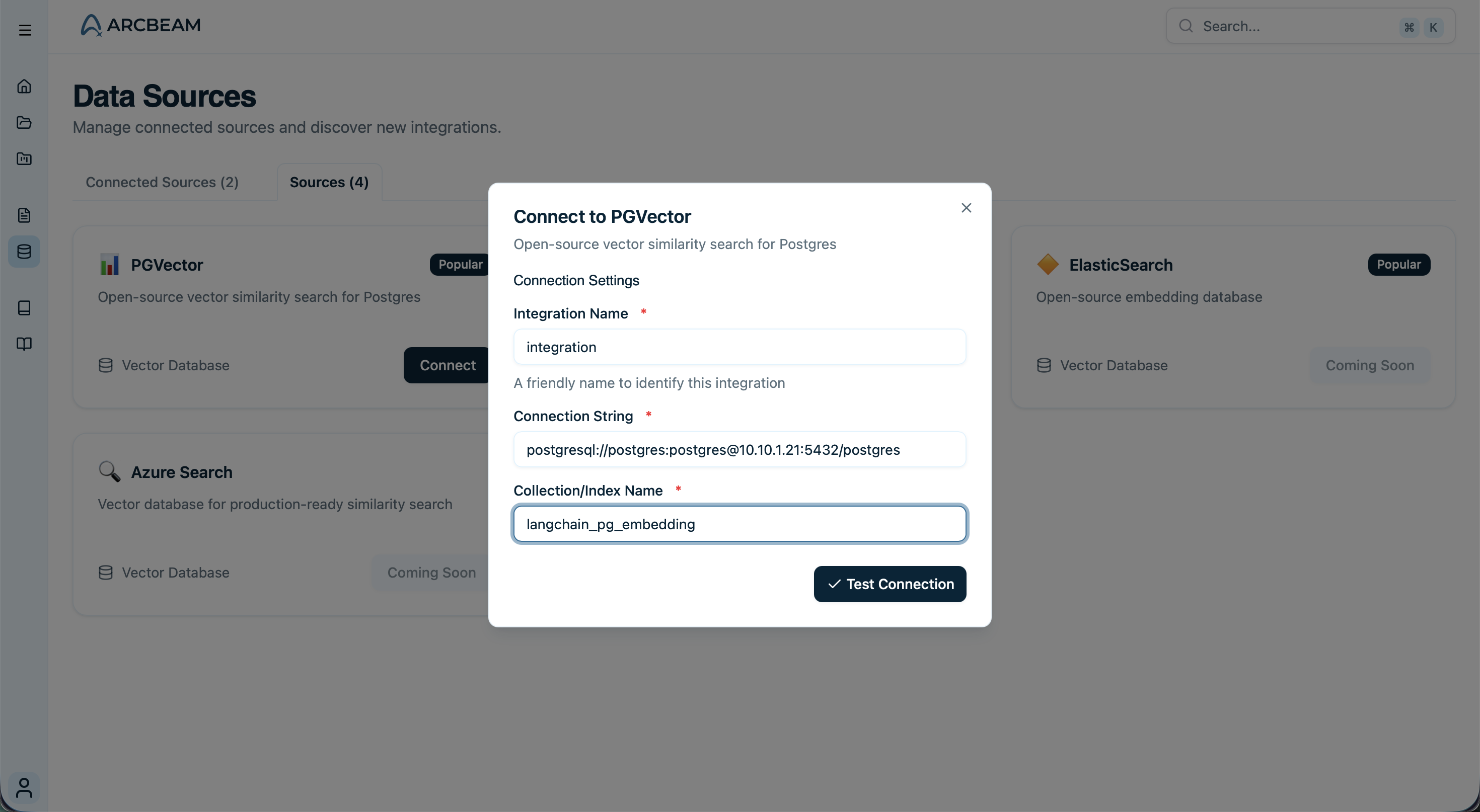
 Tell Arcbeam how to access your pgvector database.
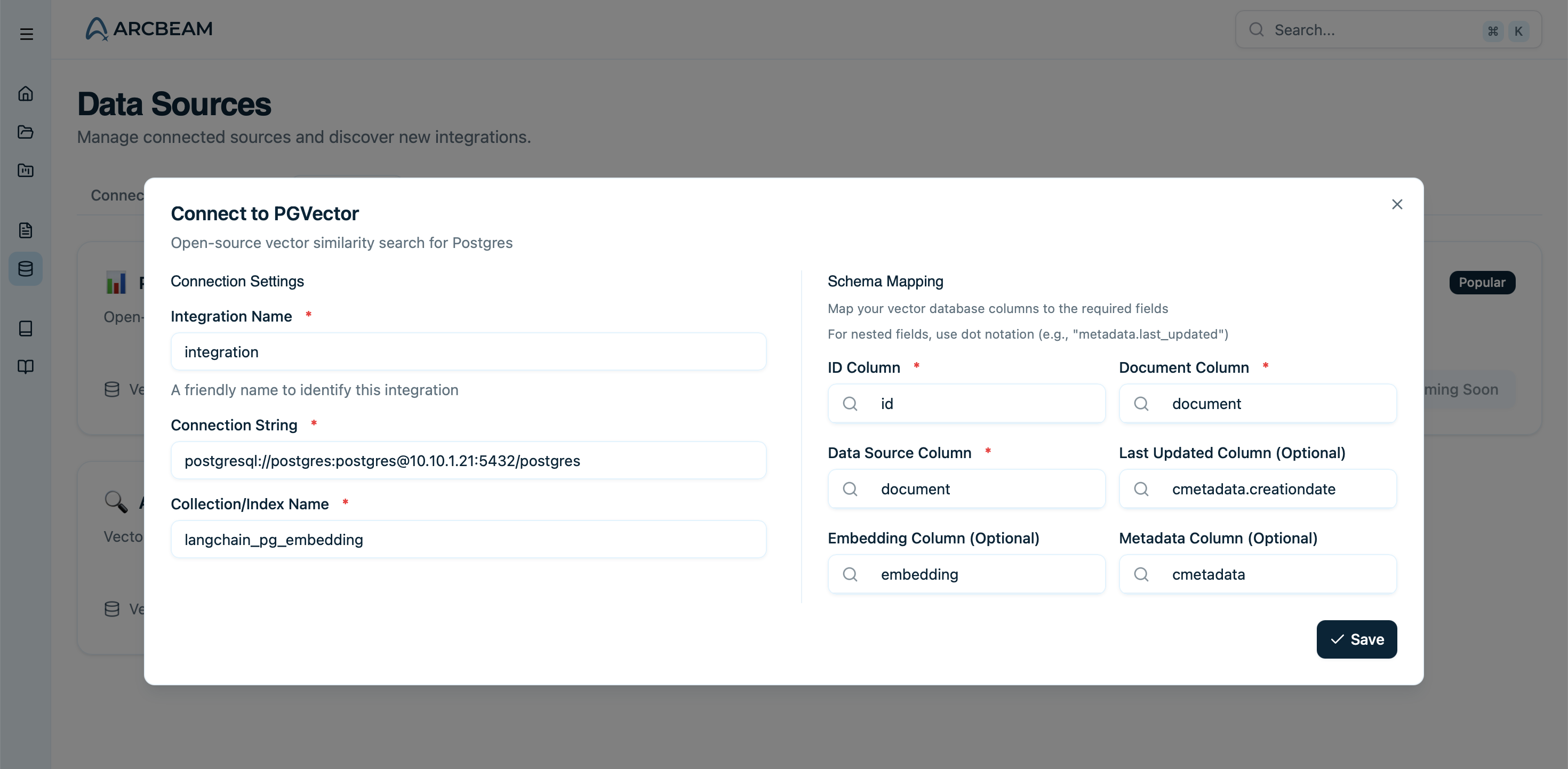
 Type which fields contain your document content, IDs, and metadata.
For nested columns type them out with a `.` in between each level.
Example: If the field you want to reference is col3 in `{'col1' : {'col2': {'col3': 'value'}}}`, then type in `col1.col2.col3`
Type which fields contain your document content, IDs, and metadata.
For nested columns type them out with a `.` in between each level.
Example: If the field you want to reference is col3 in `{'col1' : {'col2': {'col3': 'value'}}}`, then type in `col1.col2.col3`
 Arcbeam pulls metadata about your documents (not the vectors themselves).
When traces come in, Arcbeam automatically links retrieved documents to each query.
Your data sources are now connected and enriching your traces!
## What Gets Synced
Arcbeam syncs **metadata about your documents**, not the documents themselves.
| Data Type | Synced? | Description |
| --------------------- | ----------- | ---------------------------------------------------------------------------------------------------------------------------------------------------------- |
| Document IDs | ✓ Yes | To match retrieved docs in traces |
| Source attribution | ✓ Yes | Which file/URL each document came from |
| Basic metadata | ✓ Yes | Timestamps, document names, etc. |
| Document content | ✓ Yes | Text content of documents (stays in your DB, referenced in traces) |
| **Vector embeddings** | ✗ **Never** | Your vectors and embeddings are **never synced** |
| Unmapped fields | ✗ **Never** | Only the metadata fields you explicitly specify are copied |
The actual document content stays in your vector database. Arcbeam only stores what's needed to show you which documents were used in each trace.
## Supported Vector Databases
PostgreSQL with pgvector extension (fully supported)
Pinecone, Weaviate, Chroma, and others
## Privacy and Security
Arcbeam only reads the fields you explicitly map:
| Field Type | Accessed? | Description |
| ------------------------- | ----------- | ----------------------------------------------- |
| Document IDs | ✓ Yes | Required to match documents in traces |
| Document content (text) | ✓ Yes | Document text content for display |
| Source attribution fields | ✓ Yes | Track which file/URL documents came from |
| Metadata fields | ✓ Optional | Only fields you explicitly map in configuration |
| Timestamp fields | ✓ Optional | Only if you configure last updated tracking |
| **Vector embeddings** | ✗ **Never** | Your embeddings are never accessed or synced |
| **Unmapped fields** | ✗ **Never** | Only explicitly mapped fields are read |
* Connection strings are encrypted at rest
* Database credentials are never logged or exposed
* All connections use SSL/TLS when available
* Read-only access is recommended
Create a dedicated read-only database user for Arcbeam to minimize security risk.
If your data can't leave your infrastructure:
* Run Arcbeam in your own VPC
* Keep all data within your network
* Full control over data storage and access
[Learn more about self-hosting →](/v0/deployment/self-host)
## When to Connect Data Sources
| Use Case | Connect Data Sources? | Why |
| -------------------------------------------------------------------------------------------------------------------------------------------------------------------------------- | --------------------- | ---------------------------------------------------- |
| Using RAG (retrieval-augmented generation) | ✓ **Yes** | Track which documents are retrieved and their impact |
| Track which documents are most useful | ✓ **Yes** | See usage analytics and document performance |
| Debug why certain answers were given | ✓ **Yes** | Trace answers back to source documents |
| Measure knowledge base quality | ✓ **Yes** | Identify gaps and improvement opportunities |
| Only using direct LLM calls (no retrieval) | ✗ Skip | No document retrieval to track |
| Just want to track costs and errors | ✗ Skip | Traces alone provide this information |
| Using function calling without RAG | ✗ Skip | No vector database retrieval involved |
## Quick Example
Here's what connecting a pgvector database looks like:
```python theme={null}
# Your vector database has a table with this structure:
# CREATE TABLE knowledge_base (
# id TEXT PRIMARY KEY,
# content TEXT,
# source TEXT,
# updated_at TIMESTAMP
# );
# In Arcbeam dashboard:
# 1. Add pgvector integration
# 2. Provide connection string
# 3. Map schema:
# - ID field: "id"
# - Document field: "content"
# - Source field: "source"
# - Last updated: "updated_at" (optional)
```
Once connected, traces automatically show which documents were retrieved:
Arcbeam pulls metadata about your documents (not the vectors themselves).
When traces come in, Arcbeam automatically links retrieved documents to each query.
Your data sources are now connected and enriching your traces!
## What Gets Synced
Arcbeam syncs **metadata about your documents**, not the documents themselves.
| Data Type | Synced? | Description |
| --------------------- | ----------- | ---------------------------------------------------------------------------------------------------------------------------------------------------------- |
| Document IDs | ✓ Yes | To match retrieved docs in traces |
| Source attribution | ✓ Yes | Which file/URL each document came from |
| Basic metadata | ✓ Yes | Timestamps, document names, etc. |
| Document content | ✓ Yes | Text content of documents (stays in your DB, referenced in traces) |
| **Vector embeddings** | ✗ **Never** | Your vectors and embeddings are **never synced** |
| Unmapped fields | ✗ **Never** | Only the metadata fields you explicitly specify are copied |
The actual document content stays in your vector database. Arcbeam only stores what's needed to show you which documents were used in each trace.
## Supported Vector Databases
PostgreSQL with pgvector extension (fully supported)
Pinecone, Weaviate, Chroma, and others
## Privacy and Security
Arcbeam only reads the fields you explicitly map:
| Field Type | Accessed? | Description |
| ------------------------- | ----------- | ----------------------------------------------- |
| Document IDs | ✓ Yes | Required to match documents in traces |
| Document content (text) | ✓ Yes | Document text content for display |
| Source attribution fields | ✓ Yes | Track which file/URL documents came from |
| Metadata fields | ✓ Optional | Only fields you explicitly map in configuration |
| Timestamp fields | ✓ Optional | Only if you configure last updated tracking |
| **Vector embeddings** | ✗ **Never** | Your embeddings are never accessed or synced |
| **Unmapped fields** | ✗ **Never** | Only explicitly mapped fields are read |
* Connection strings are encrypted at rest
* Database credentials are never logged or exposed
* All connections use SSL/TLS when available
* Read-only access is recommended
Create a dedicated read-only database user for Arcbeam to minimize security risk.
If your data can't leave your infrastructure:
* Run Arcbeam in your own VPC
* Keep all data within your network
* Full control over data storage and access
[Learn more about self-hosting →](/v0/deployment/self-host)
## When to Connect Data Sources
| Use Case | Connect Data Sources? | Why |
| -------------------------------------------------------------------------------------------------------------------------------------------------------------------------------- | --------------------- | ---------------------------------------------------- |
| Using RAG (retrieval-augmented generation) | ✓ **Yes** | Track which documents are retrieved and their impact |
| Track which documents are most useful | ✓ **Yes** | See usage analytics and document performance |
| Debug why certain answers were given | ✓ **Yes** | Trace answers back to source documents |
| Measure knowledge base quality | ✓ **Yes** | Identify gaps and improvement opportunities |
| Only using direct LLM calls (no retrieval) | ✗ Skip | No document retrieval to track |
| Just want to track costs and errors | ✗ Skip | Traces alone provide this information |
| Using function calling without RAG | ✗ Skip | No vector database retrieval involved |
## Quick Example
Here's what connecting a pgvector database looks like:
```python theme={null}
# Your vector database has a table with this structure:
# CREATE TABLE knowledge_base (
# id TEXT PRIMARY KEY,
# content TEXT,
# source TEXT,
# updated_at TIMESTAMP
# );
# In Arcbeam dashboard:
# 1. Add pgvector integration
# 2. Provide connection string
# 3. Map schema:
# - ID field: "id"
# - Document field: "content"
# - Source field: "source"
# - Last updated: "updated_at" (optional)
```
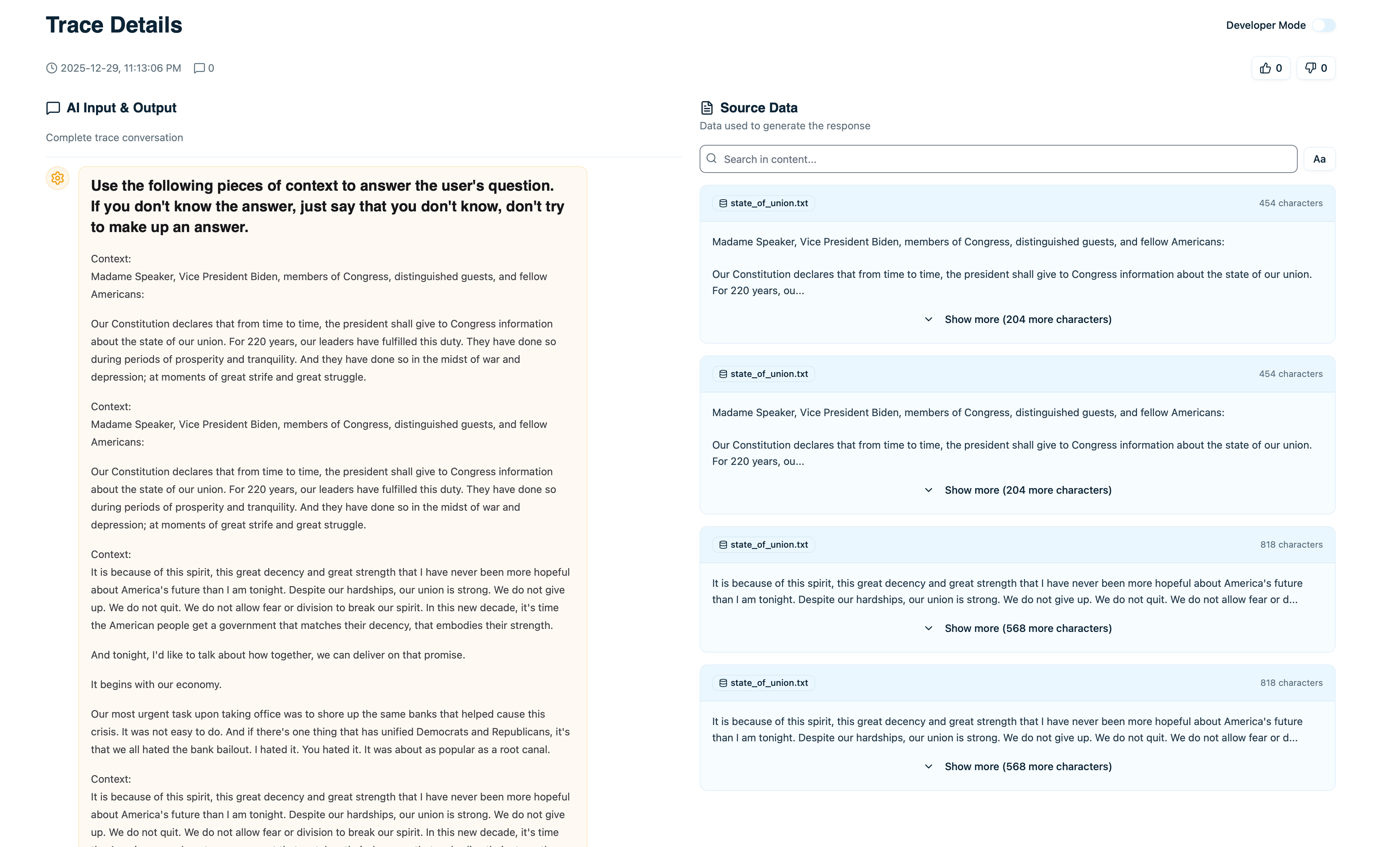
Once connected, traces automatically show which documents were retrieved:
 ## What You Can Do With Connected Data
See which documents are retrieved most often, which are never used, and which ones lead to good vs bad responses.
When a trace shows wrong information, see exactly which documents were retrieved and whether they contained the right content.
Find gaps in your knowledge base by seeing which queries don't retrieve useful documents.
When users give thumbs down, see which documents were involved and update them accordingly.
## Next Steps
Step-by-step guide to connecting a pgvector database
Understand how data flows through your system
Explore retrieved documents in traces
Analyze which documents are being used
## Common Questions
No. Syncing is a one-time operation that reads metadata. It doesn't run queries during normal operation. Your application's vector database queries are completely separate.
Update the schema mapping in Arcbeam, then trigger a re-sync. Arcbeam will refresh the metadata.
Yes. You can connect multiple vector databases or different tables/indices within the same database. Each becomes a separate dataset in Arcbeam.
No. Arcbeam only needs read access to your vector database. Using a read-only user is recommended for security.
Connect each one separately. Arcbeam will track documents across all of them and show you which database was used for each retrieval.
## What You Can Do With Connected Data
See which documents are retrieved most often, which are never used, and which ones lead to good vs bad responses.
When a trace shows wrong information, see exactly which documents were retrieved and whether they contained the right content.
Find gaps in your knowledge base by seeing which queries don't retrieve useful documents.
When users give thumbs down, see which documents were involved and update them accordingly.
## Next Steps
Step-by-step guide to connecting a pgvector database
Understand how data flows through your system
Explore retrieved documents in traces
Analyze which documents are being used
## Common Questions
No. Syncing is a one-time operation that reads metadata. It doesn't run queries during normal operation. Your application's vector database queries are completely separate.
Update the schema mapping in Arcbeam, then trigger a re-sync. Arcbeam will refresh the metadata.
Yes. You can connect multiple vector databases or different tables/indices within the same database. Each becomes a separate dataset in Arcbeam.
No. Arcbeam only needs read access to your vector database. Using a read-only user is recommended for security.
Connect each one separately. Arcbeam will track documents across all of them and show you which database was used for each retrieval.