

Why Retrieved Documents Matter
Without seeing retrieved documents, you only know what the LLM said, not why it said it. With document visibility:- Debug wrong answers - See if bad documents were retrieved
- Improve your knowledge base - Find gaps or outdated information
- Build trust - Show stakeholders exactly where answers came from
- Optimize retrieval - Identify when retrieval fails to find relevant docs
Viewing Retrieved Documents in a Trace
When you open a trace that used RAG, you’ll see a Retrieved Documents section: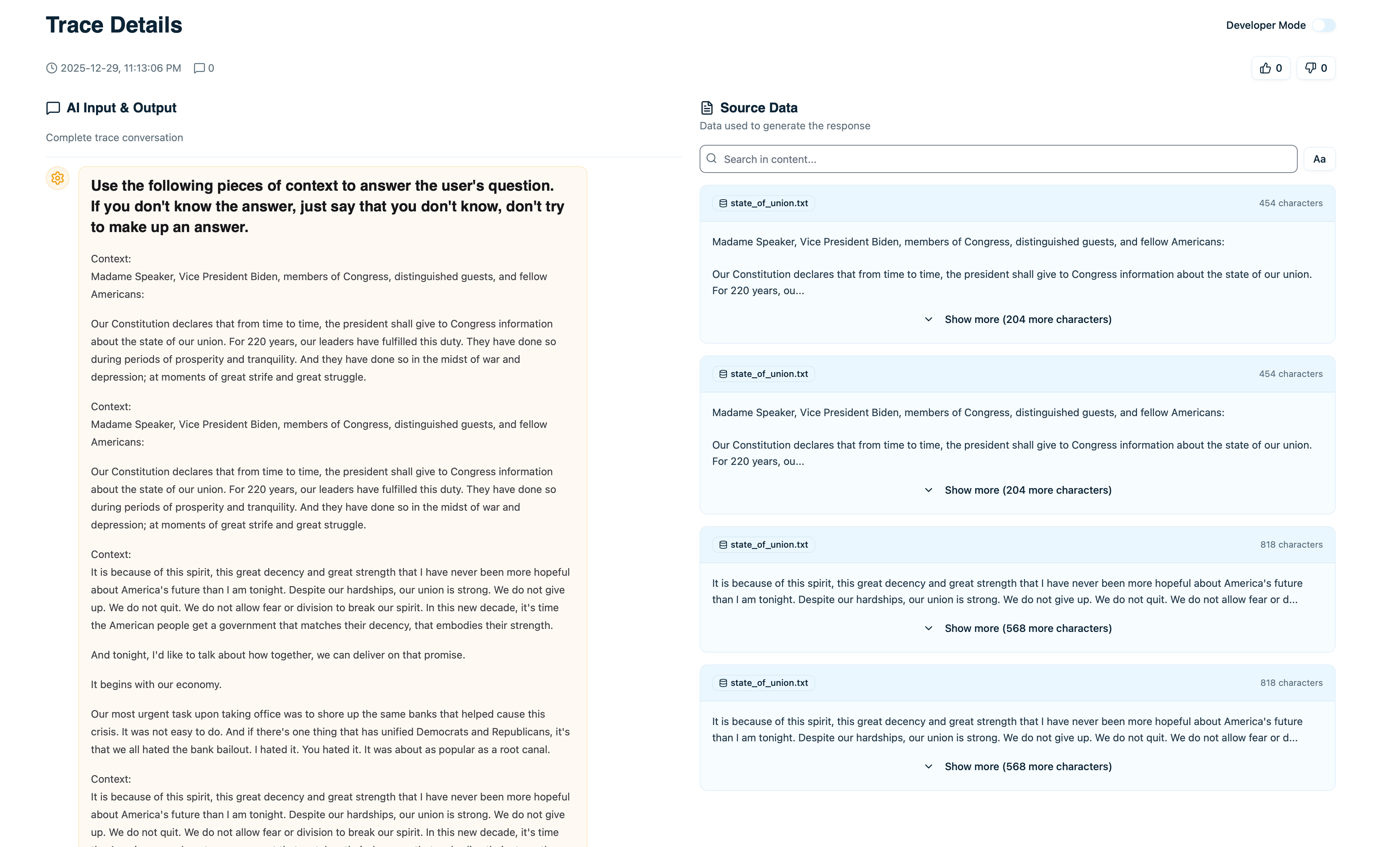
Retrieved Source Data
- Document content - The actual text passage
- Source - Where this came from (file name, URL, etc.)
- Relevance score - How relevant the retriever considered it (if available)
- Retrieved at - Which step in the execution retrieved this
Document Details
Click on any retrieved document to see full details:Complete Content
The full text of the document chunk, not just a preview. This is exactly what was passed to the LLM as context.Data Lineage
Where this document came from:- File name - Original file (e.g.,
product-docs.pdf) - URL - Web source if applicable
- Dataset - Which dataset in Arcbeam contains this
- Source type - Document type or category
Metadata
Additional fields synced from your vector database:- Last updated - When this document was last modified
- Author - Who created it (if tracked)
- Tags - Categories or labels
- Custom fields - Any other metadata you’ve synced
Retrieval Context
- Retrieved at timestamp - Exact time this was fetched
- Retrieval step - Which node in the execution retrieved it
- Query used - What query was sent to the vector database
- Relevance score - Similarity score from the retriever
Connecting Data Sources
To see retrieved documents, you need to connect your vector database →. Once connected:- Arcbeam syncs metadata about your documents
- When traces arrive with document IDs, Arcbeam links them
- You see the full document content in each trace
Analyzing Retrieved Documents
Were the Right Documents Retrieved?
When debugging a bad answer:- Open the trace
- Review the retrieved documents
- Ask: “Do these documents contain the right information?”
- Problem: Prompt engineering or model choice
- Fix: Improve your prompt or try a different model
- Problem: Retrieval strategy or knowledge base gaps
- Fix: Improve embeddings, adjust retrieval params, or add missing docs
Document Relevance
Check relevance scores to see if the retriever was confident:
Low scores across all retrieved docs often mean:
- The query wasn’t in your knowledge base
- Embeddings need improvement
- Not enough documents in that topic area
Source Diversity
Look at where documents came from:- All from one source - Might be too narrow
- Diverse sources - Good, comprehensive answer
- Unexpected source - Might indicate retrieval issue
Document Usage Stats
Click View Usage on any document to see:- Times retrieved - How often this document is used
- Unique traces - Number of different queries that retrieved it
- Average relevance - Mean relevance score across retrievals
- Recent traces - Latest traces that used this document
- Popular documents - Frequently retrieved, important content
- Unused documents - Never retrieved, might be irrelevant or poorly embedded
- Trending documents - Recently added or suddenly popular
Data Lineage
For each retrieved document, see exactly where it originated:- File path - Original location (e.g.,
/docs/api-reference.md) - URL - Web link if from a website
- Repository - GitHub repo if from code docs
- Last modified - When the source was last updated
- Verify accuracy - Check if the source doc is still current
- Update outdated info - Find the original file to update
- Audit answers - Trace back to authoritative sources
Comparing Document Retrieval
To understand why two similar queries got different results:- Open the first trace
- Note which documents were retrieved
- Open the second trace
- Compare retrieved documents
- Different documents - Why did retrieval diverge?
- Different order - Did ranking change?
- Missing documents - Why wasn’t an important doc retrieved?
- Slight query wording changes affect embeddings
- Retrieval parameters (top K, threshold) filtering differently
- Documents updated between queries
Debugging RAG Issues
Issue: Wrong Answer Despite Having the Info
Symptoms: Your knowledge base has the right info, but the LLM gave a wrong answer. Debug steps:- Check retrieved documents - Was the right document retrieved?
- If yes: Read the prompt - Did you instruct the LLM to use the docs?
- Check LLM output - Did it hallucinate or ignore the retrieved docs?
- Improve prompt to emphasize using retrieved context
- Use a more capable model
- Reduce number of retrieved docs to avoid confusion
Issue: Right Documents but Low Confidence Answer
Symptoms: Correct documents retrieved, but LLM says “I’m not sure” or hedges. Debug steps:- Check document content - Is it clear and complete?
- Check relevance scores - Are they low?
- Review how many docs were retrieved - Too many or too few?
- Improve document quality (clearer writing)
- Adjust retrieval threshold (require higher relevance)
- Modify prompt to reduce hedging
Issue: No Relevant Documents Retrieved
Symptoms: Retrieved documents are completely unrelated to the query. Debug steps:- Check if the topic exists in your knowledge base
- Review embedding quality - Are similar queries finding the right docs?
- Check query transformation - Was the query modified before retrieval?
- Add missing content to knowledge base
- Re-embed documents with better model
- Adjust query transformation logic
Using Retrieved Documents with Stakeholders
When sharing trace insights with non-technical stakeholders:Show Source Attribution
- Open trace with wrong answer
- Show which documents were retrieved
- Highlight that the source docs are outdated or incorrect
Demonstrate Coverage Gaps
- Find traces where no relevant docs were retrieved
- Group by topic
- Show stakeholders which topics are missing from knowledge base
Highlight Popular Content
- Show which documents are retrieved most often
- Demonstrate which topics users care about
- Prioritize keeping those docs updated
Best Practices
Always Check Retrieved Docs First
When debugging bad outputs:- Don’t assume the LLM is broken
- First check: “Did it get the right documents?”
- Often the problem is retrieval, not the LLM
Monitor Retrieval Quality Over Time
Regularly review:- Average relevance scores - Are they declining?
- Retrieval failures - Are certain queries never finding docs?
- Document coverage - Are large topic areas unrepresented?
Keep Source Docs Updated
When you see outdated info in retrieved docs:- Update the original source document
- Re-sync your data source in Arcbeam
- Verify future traces use the new content
Use Document Feedback for Improvement
When users give thumbs down:- Check which documents were retrieved
- If docs are wrong: Improve retrieval or knowledge base
- If docs are right: Improve prompt or model
Next Steps
Connect Data Sources
Link your vector database to see retrieved docs
Document Usage
Track which documents are used most
Debugging RAG
Complete guide to debugging retrieval issues
Collections
Organize traces for review sessions