Connecting your to Arcbeam creates a complete picture of your AI system. You’ll see not just what your model said, but exactly which documents from your knowledge base influenced each response.

Why Connect Data Sources?

When you only see traces without data sources, you know your AI system produced an answer but you don’t know where it came from. Was it hallucinating? Did it retrieve the right documents? Which parts of your knowledge base are actually being used? With data sources connected, every trace shows:

Document Attribution

Which specific documents were retrieved and their exact content

Usage Analytics

How often each document is used across all queries

Quality Insights

Which documents need updating or improvement

Actionable Data

Turn observability into concrete improvements

How It Works

1

Choose your source

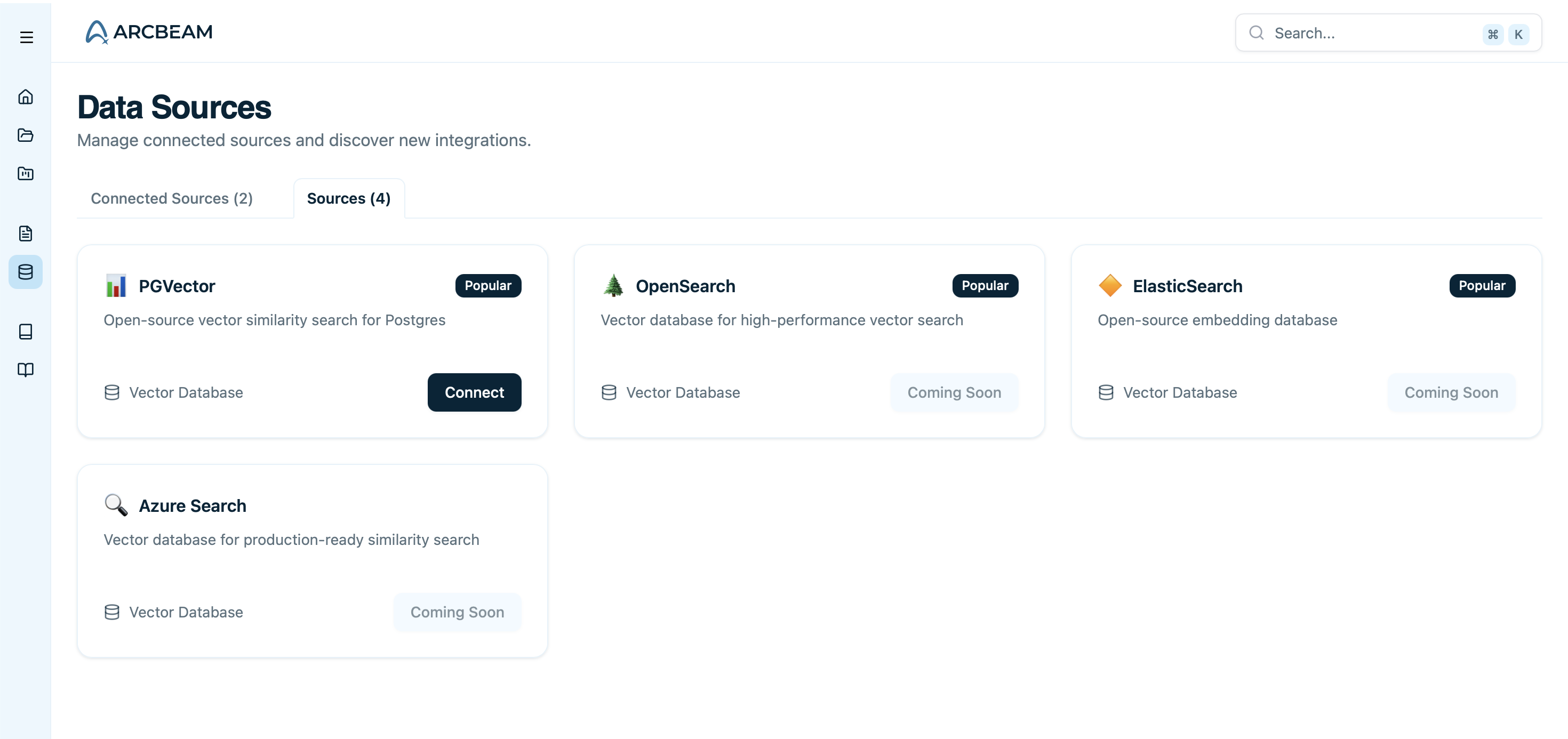
Navigate to Data PlatformData Sources and choose your data source.
Data Sources page.
2

Connect your vector database

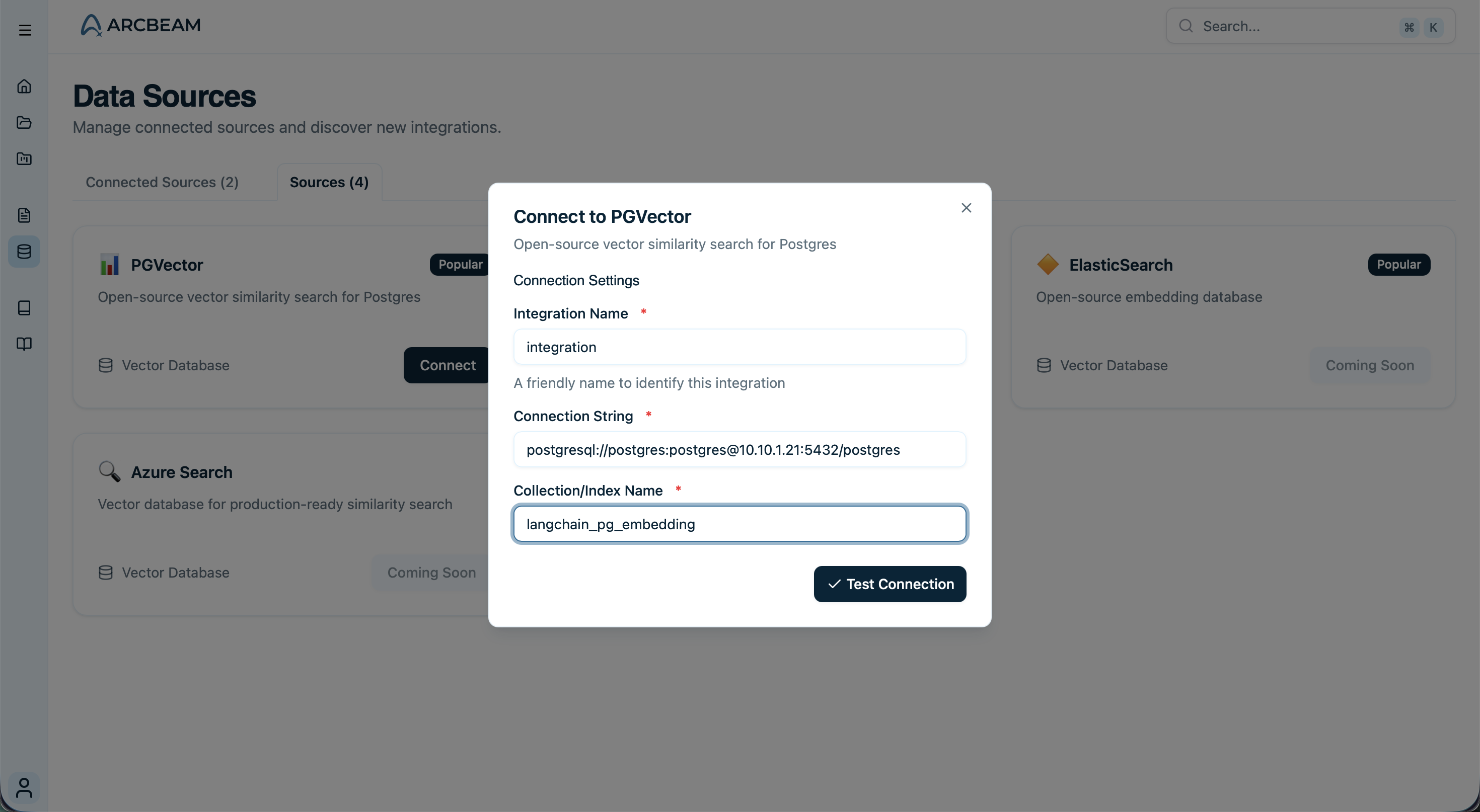
Tell Arcbeam how to access your .
Connect your vector database.
3

Map your schema

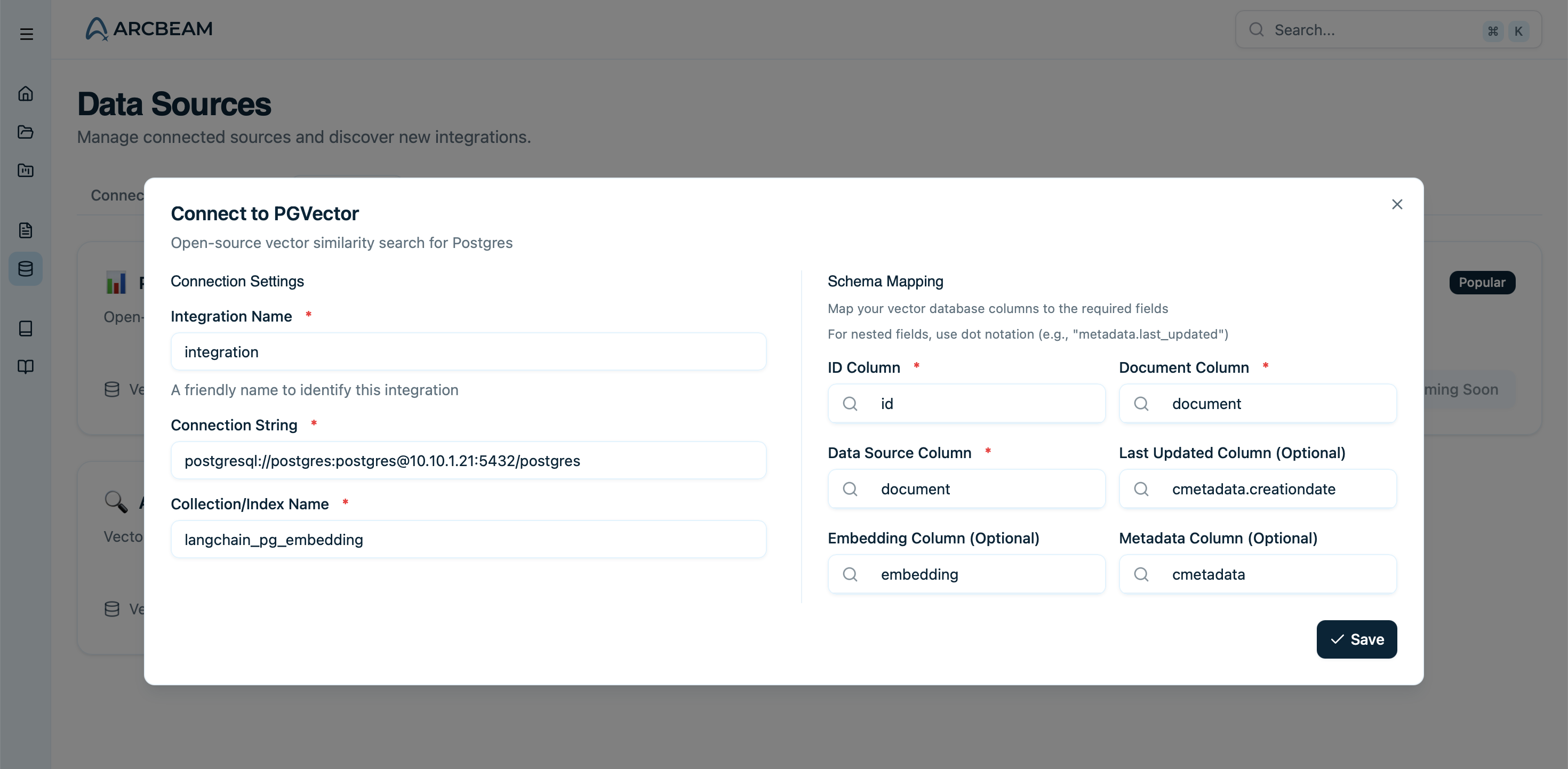
Type which fields contain your document content, IDs, and metadata.
For nested columns type them out with a . in between each level.Example: If the field you want to reference is col3 in {'col1' : {'col2': {'col3': 'value'}}}, then type in col1.col2.col3
Specify schema.
4

Sync once

Arcbeam pulls metadata about your documents (not the vectors themselves).
5

See the connections

When traces come in, Arcbeam automatically links retrieved documents to each query.
Your data sources are now connected and enriching your traces!

What Gets Synced

Arcbeam syncs metadata about your documents, not the documents themselves.
Data TypeSynced?Description
Document IDs✓ YesTo match retrieved docs in traces
Source attribution✓ YesWhich file/URL each document came from
Basic metadata✓ YesTimestamps, document names, etc.
Document content✓ YesText content of documents (stays in your DB, referenced in traces)
Vector embeddingsNeverYour are never synced
Unmapped fieldsNeverOnly the metadata fields you explicitly specify are copied
The actual document content stays in your vector database. Arcbeam only stores what’s needed to show you which documents were used in each trace.

Supported Vector Databases

pgvector

PostgreSQL with pgvector extension (fully supported)

Coming Soon

Pinecone, Weaviate, Chroma, and others

Privacy and Security

Arcbeam only reads the fields you explicitly map:
Field TypeAccessed?Description
Document IDs✓ YesRequired to match documents in traces
Document content (text)✓ YesDocument text content for display
Source attribution fields✓ YesTrack which file/URL documents came from
Metadata fields✓ OptionalOnly fields you explicitly map in configuration
Timestamp fields✓ OptionalOnly if you configure last updated tracking
Vector embeddingsNeverYour embeddings are never accessed or synced
Unmapped fieldsNeverOnly explicitly mapped fields are read
  • Connection strings are encrypted at rest
  • Database credentials are never logged or exposed
  • All connections use SSL/TLS when available
  • Read-only access is recommended
Create a dedicated read-only database user for Arcbeam to minimize security risk.
If your data can’t leave your infrastructure:
  • Run Arcbeam in your own VPC
  • Keep all data within your network
  • Full control over data storage and access
Learn more about self-hosting →

When to Connect Data Sources

Use CaseConnect Data Sources?Why
Using YesTrack which documents are retrieved and their impact
Track which documents are most usefulYesSee usage analytics and document performance
Debug why certain answers were givenYesTrace answers back to source documents
Measure knowledge base qualityYesIdentify gaps and improvement opportunities
Only using direct LLM calls (no retrieval)✗ SkipNo document retrieval to track
Just want to track costs and errors✗ SkipTraces alone provide this information
Using function calling without RAG✗ SkipNo vector database retrieval involved

Quick Example

Here’s what connecting a pgvector database looks like:
# Your vector database has a table with this structure:
# CREATE TABLE knowledge_base (
#   id TEXT PRIMARY KEY,
#   content TEXT,
#   source TEXT,
#   updated_at TIMESTAMP
# );

# In Arcbeam dashboard:
# 1. Add pgvector integration
# 2. Provide connection string
# 3. Map schema:
#    - ID field: "id"
#    - Document field: "content"
#    - Source field: "source"
#    - Last updated: "updated_at" (optional)
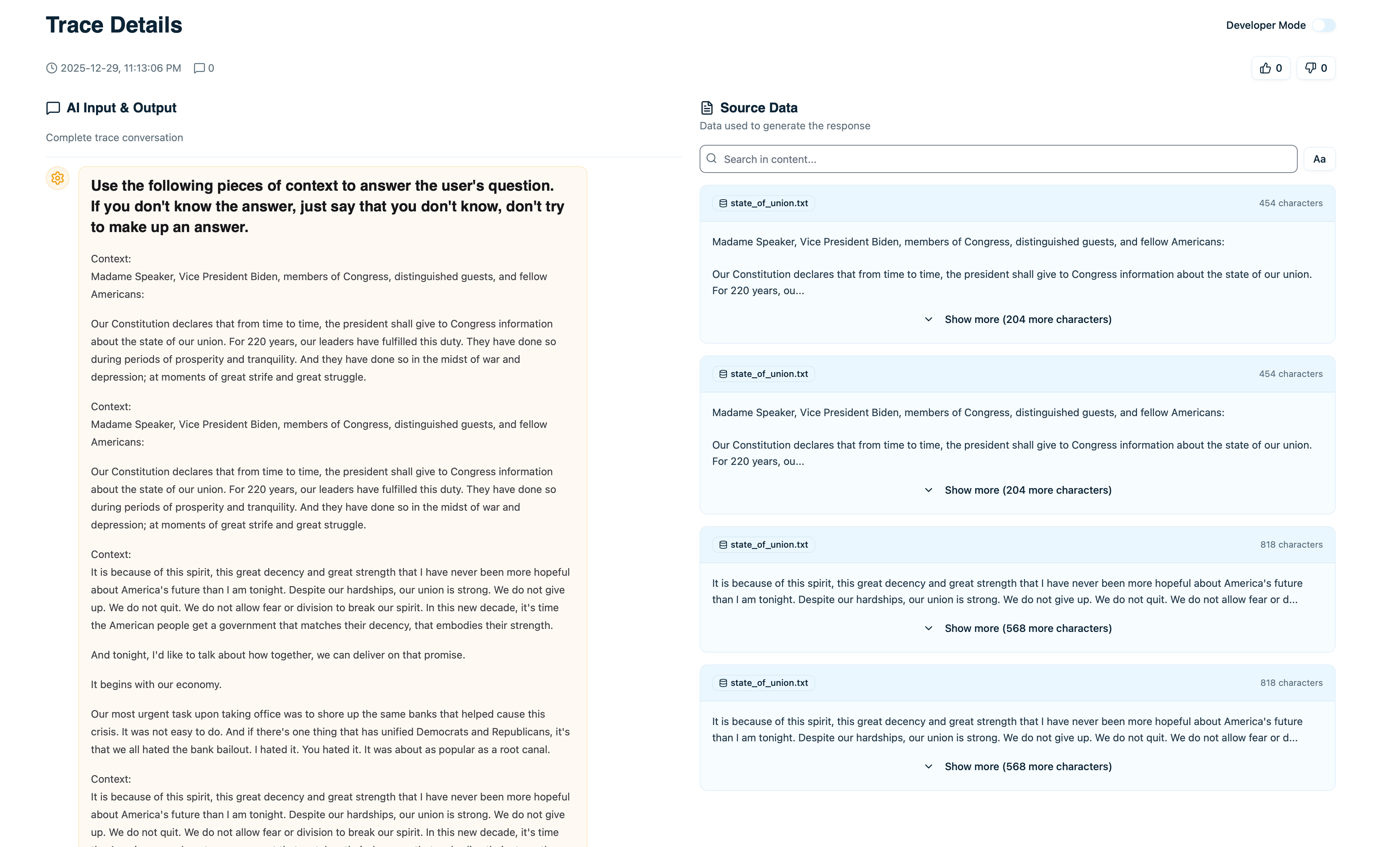
Once connected, traces automatically show which documents were retrieved:
Chunks from your source data your AI system used.

What You Can Do With Connected Data

Next Steps

Common Questions

No. Syncing is a one-time operation that reads metadata. It doesn’t run queries during normal operation. Your application’s vector database queries are completely separate.
Update the schema mapping in Arcbeam, then trigger a re-sync. Arcbeam will refresh the metadata.
Yes. You can connect multiple vector databases or different tables/indices within the same database. Each becomes a separate dataset in Arcbeam.
No. Arcbeam only needs read access to your vector database. Using a read-only user is recommended for security.
Connect each one separately. Arcbeam will track documents across all of them and show you which database was used for each retrieval.