Arcbeam integrates with to provide full observability for your agent workflows. Capture every graph execution, node transition, and state change automatically.

What Gets Captured

Complete workflow from start to finish with full execution tree
Each node in your graph with inputs, outputs, and state transformations
How evolves through the graph at each step
Model invocations within nodes with prompts, responses, and costs
External API calls and function executions within nodes
Which paths the agent took and why, including decision logic
Duration for each node and transition to identify bottlenecks
Where execution failed and why, with full stack traces

Installation

1

Check Prerequisites

Ensure you have:
  • Python 3.9 or higher
  • LangGraph installed (pip install langgraph)
  • Arcbeam account and API key
2

Install Arcbeam SDK

pip install arcbeam-connector
Installation complete! You’re ready to instrument your LangGraph workflows.

Quick Start

1. Initialize Arcbeam

Add these lines at the start of your application:
from arcbeam_connector.langchain.connector import ArcbeamLangConnector

connector = ArcbeamLangConnector(
    base_url="http://platform.arcbeam.ai",  # Or your self-hosted URL
    api_key="your-api-key-here",  # Your Arcbeam API key
    project_id="your-project-id-here",  # Your project ID
)
connector.init()

2. Run Your LangGraph Code

Your existing LangGraph code will automatically send traces:
from langgraph.graph import StateGraph, END
from langchain.llms import OpenAI

# Define your graph (no changes needed)
workflow = StateGraph(dict)

def call_model(state):
    llm = OpenAI()
    response = llm.invoke(state["messages"])
    return {"messages": response}

workflow.add_node("agent", call_model)
workflow.add_edge("agent", END)
workflow.set_entry_point("agent")

app = workflow.compile()

# This execution is automatically traced
result = app.invoke({"messages": "What is the weather?"})

Configuration

Environment Variables

Use environment variables for credentials:
export ARCBEAM_API_KEY="your_api_key"
export ARCBEAM_PROJECT_ID="your_project_id"
export ARCBEAM_BASE_URL="http://platform.arcbeam.ai"
Then read from environment variables in your code:
import os
from arcbeam_connector.langchain.connector import ArcbeamLangConnector

connector = ArcbeamLangConnector(
    base_url=os.getenv("ARCBEAM_BASE_URL"),
    api_key=os.getenv("ARCBEAM_API_KEY"),
    project_id=os.getenv("ARCBEAM_PROJECT_ID"),
)
connector.init()

Environment Tag

Add environment tag to organize traces:
from arcbeam_connector.langchain.connector import ArcbeamLangConnector

connector = ArcbeamLangConnector(
    base_url="http://platform.arcbeam.ai",
    api_key="your_api_key",
    project_id="your_project_id",
    environment="production",  # Tag traces by environment
)
connector.init()

Advanced Usage

The Arcbeam connector automatically captures all LangGraph operations including graph executions, node transitions, state changes, LLM calls, and errors. All traces are tagged with your project ID and environment for easy filtering.

Visualizing Agent Workflows

View Graph Execution

In the Arcbeam dashboard:
  1. Go to Traces page
  2. Find your graph execution
  3. View the span tree showing:
    • Graph execution span (top level)
    • Node execution spans (children)
    • LLM calls within nodes
    • Tool calls within nodes
    • Timing for each step
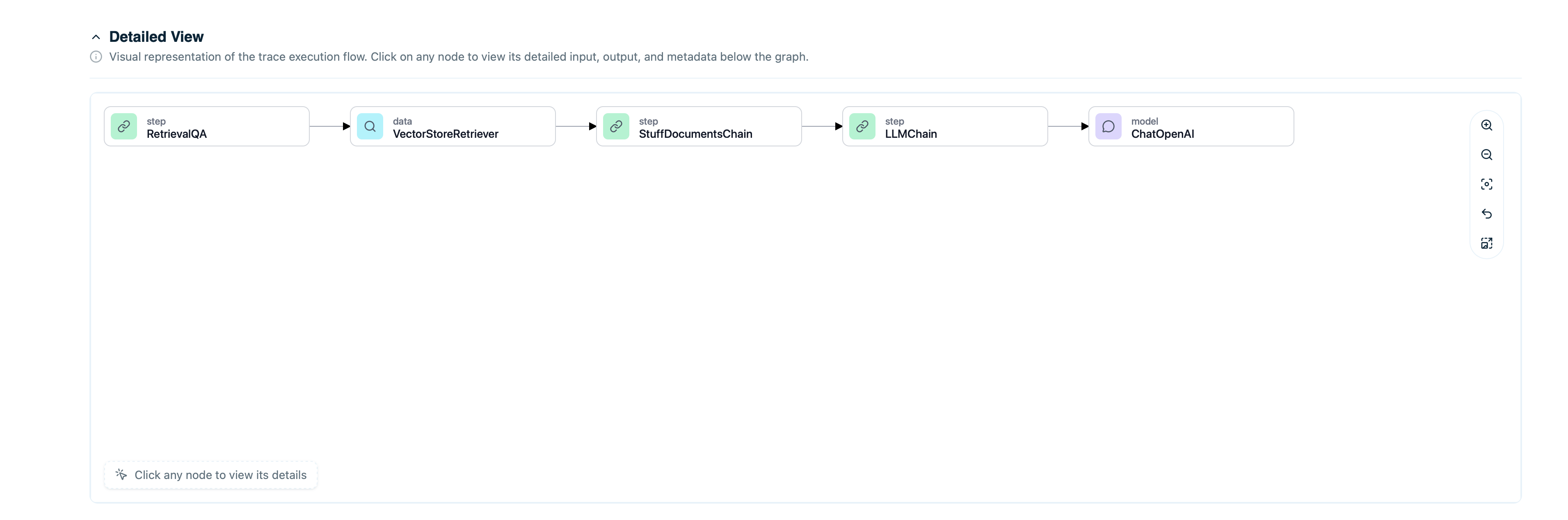
Detailed steps of what your AI system did.

Understand Conditional Paths

See which edges were taken:
  • View decision points
  • Check conditional logic outcomes
  • Understand why certain nodes were skipped
  • Identify unexpected routing

Example: Customer Service Agent

Full example with LangGraph and Arcbeam:
import os
from arcbeam_connector.langchain.connector import ArcbeamLangConnector
from langgraph.graph import StateGraph, END
from langchain.llms import OpenAI
from langchain.vectorstores import PGVector
from typing import TypedDict

# Initialize Arcbeam
connector = ArcbeamLangConnector(
    base_url=os.getenv("ARCBEAM_BASE_URL", "http://platform.arcbeam.ai"),
    api_key=os.getenv("ARCBEAM_API_KEY"),
    project_id=os.getenv("ARCBEAM_PROJECT_ID"),
    environment="production",
)
connector.init()

# Define state
class AgentState(TypedDict):
    messages: list
    intent: str
    context: list
    response: str

# Set up vector store
vectorstore = PGVector(
    connection_string=os.getenv("DATABASE_URL"),
    embedding_function=embeddings,
    collection_name="kb_docs"
)

# Define nodes
def classify_intent(state: AgentState) -> AgentState:
    llm = OpenAI(model="gpt-4")
    intent = llm.invoke(f"Classify intent: {state['messages'][-1]}")
    return {"intent": intent}

def retrieve_context(state: AgentState) -> AgentState:
    docs = vectorstore.similarity_search(state["messages"][-1], k=3)
    return {"context": docs}

def generate_response(state: AgentState) -> AgentState:
    llm = OpenAI(model="gpt-4")
    context_str = "\n".join([doc.page_content for doc in state["context"]])
    prompt = f"Context: {context_str}\n\nQuestion: {state['messages'][-1]}"
    response = llm.invoke(prompt)
    return {"response": response}

# Build graph
workflow = StateGraph(AgentState)

workflow.add_node("classify", classify_intent)
workflow.add_node("retrieve", retrieve_context)
workflow.add_node("generate", generate_response)

workflow.add_edge("classify", "retrieve")
workflow.add_edge("retrieve", "generate")
workflow.add_edge("generate", END)

workflow.set_entry_point("classify")

app = workflow.compile()

# Handle user request
def handle_customer_query(user_id: str, query: str) -> str:
    # Run the graph (automatically traced)
    result = app.invoke({
        "messages": [query],
        "intent": "",
        "context": [],
        "response": ""
    })

    return result["response"]

# Example usage
response = handle_customer_query("user_456", "How do I return an item?")
print(response)

Debugging LangGraph Applications

Find Failing Nodes

Filter traces with errors:
  1. Set status filter: error
  2. View which node failed
  3. Check error message and stack trace
  4. Review node inputs that caused failure

Optimize Slow Paths

Identify performance bottlenecks:
  1. Filter by duration: > 10 seconds
  2. View span tree to see slow nodes
  3. Check if specific LLM calls or retrievals are slow
  4. Optimize prompts or reduce retrieval count

Compare Different Paths

Understand routing decisions:
  1. Create collection of similar queries
  2. Compare which paths they took
  3. See if conditional logic works as expected
  4. Identify edge cases

Track State Evolution

See how state changes through the graph:
  1. View trace detail
  2. Check state at each node
  3. Verify state updates are correct
  4. Debug unexpected state changes

Connecting Data Sources

To enable data lineage for retrieval nodes:
  1. Connect your vector store as a dataset in Arcbeam
  2. Map document ID columns
  3. Sync metadata
Now traces will show retrieved documents with full source attribution. Learn more about datasets →

Best Practices

Initialize Before Graph Definition

Call connector.init() before defining your graph:
# Good: Initialize first
from arcbeam_connector.langchain.connector import ArcbeamLangConnector

connector = ArcbeamLangConnector(
    base_url="http://platform.arcbeam.ai",
    api_key="your-api-key-here",
    project_id="your-project-id-here",
)
connector.init()

from langgraph.graph import StateGraph
# ... define your graph

Use Descriptive Node Names

Name nodes clearly:
❌ Bad: "node1", "node2", "process"
✅ Good: "classify_intent", "retrieve_context", "generate_response"

Troubleshooting

Traces Not Appearing

Check Initialization: Ensure connector.init() is called before graph compilation. Check Credentials: Verify API key and project ID:
import os
print(os.getenv("ARCBEAM_API_KEY"))
print(os.getenv("ARCBEAM_PROJECT_ID"))
Check Network: Ensure application can reach the Arcbeam platform URL.

Missing Node Details

The connector automatically captures node executions and transitions. Ensure your graph is properly defined with descriptive node names.

Performance Impact

Traces are sent asynchronously and shouldn’t impact performance. If you experience issues, check your network connection to the Arcbeam platform.

Next Steps